> ## Documentation Index
> Fetch the complete documentation index at: https://help.emaillove.com/llms.txt
> Use this file to discover all available pages before exploring further.
# The Properties Tab
> How to use the Properties tab to add subject lines, links, alt text, backgrounds, and UTM parameters to your email design
The Properties tab under the Email Love Figma Plugin interface allows you to apply various properties to different components of your email design. This includes adding metadata, customizing backgrounds, and linking URLs. Follow the steps below to understand how to use this feature effectively.
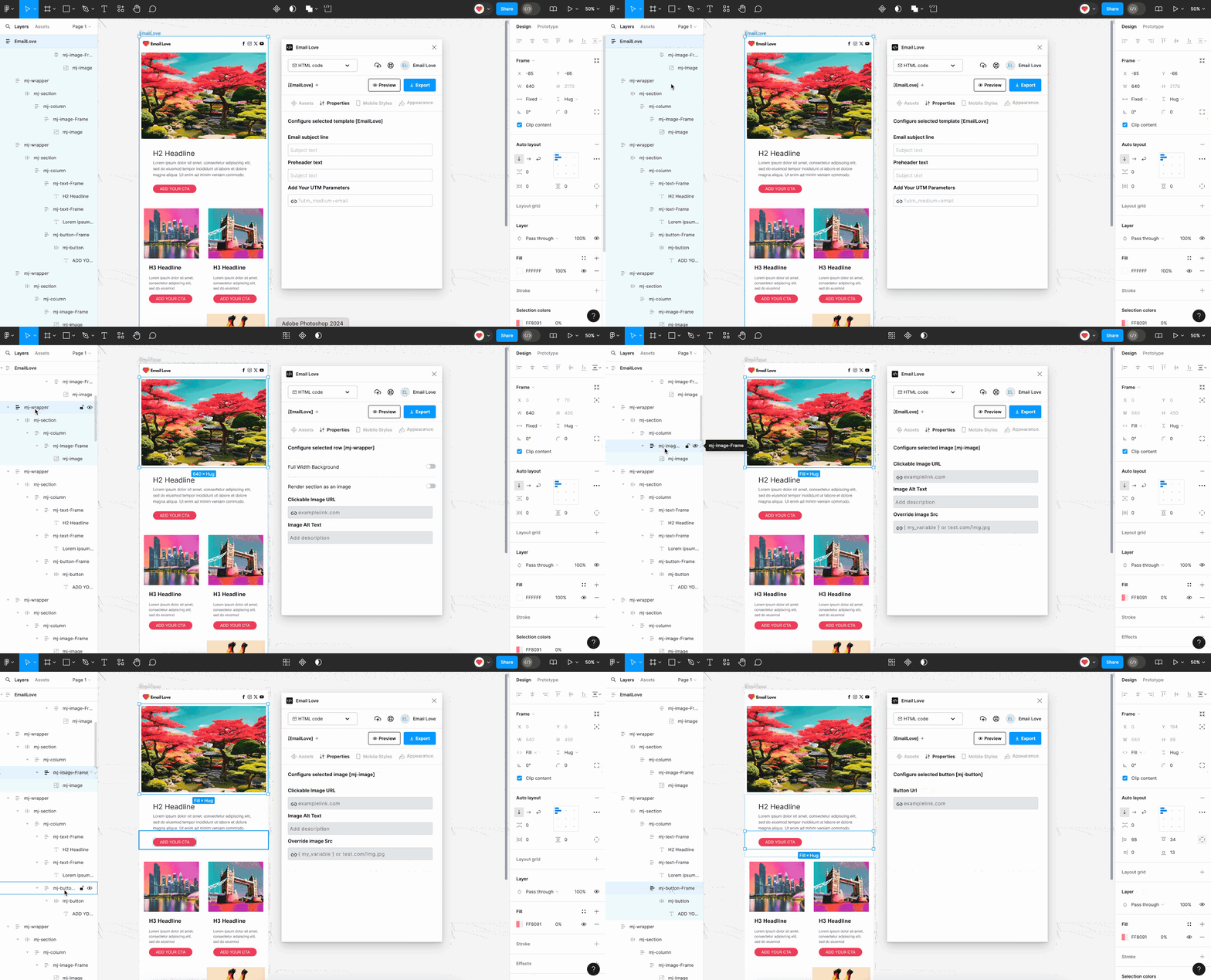 ## Layers that Support Properties
Before everything else, you will need to select a layer that you would like to apply properties to. The following layers are supported:
* **Frame:** Add a subject line, preview text, or UTM parameters to your overall email frame.
* **mj-wrapper:** Enables you to turn a section into an image, add a URL, or add a full-width background
* **mj-image-frame:** Add an image URL, alt text, or outside image destination URL
* **mj-button-frame:** Add a URL to your button
## Using the Properties Tab
1. Select the **Properties** tab within the Plugin interface.
2. Select the layer from the list on the left of the Figma interface. The options displayed under the Properties tab change depending on the selected layer.
### To Apply Properties to a Frame
When you select an entire frame, you can:
* Add a subject line and preheader text to the frame.
* Add UTM parameters to any URLs within the frame to track email campaign performance.
### To Apply Properties to a Wrapper
When you select a wrapper, you can:
* Add background color extending across an email's entire width.
* Render a section of the email as an image.
* Add a URL and alt text to any images within the wrapper.
### Apply Properties to an Image or Button
When you select an image or a button within a wrapper or frame, you can:
* Add a URL to make the image or button clickable
* Add an optional Alt Text to the image
* Merge in an external image source by entering the URL of an image hosted on a website. This allows for a dynamic image that pulls from the external source.
## Step-by-Step Instructions
The **Properties** tab will update to show options for adding a subject, preheader, or UTM parameters.
The Properties tab will update to allow changes to the background color and render the content in a wrapper as an image.
Add a URL link to it via the Properties tab.
Add a URL, alt text, or merge an external image source.
## Example Usage
* **Frame Properties**
* Add a subject line like "Welcome to Our Newsletter" and preheader text such as "Stay updated with the latest news."
* Include UTM parameters for better tracking: `utm_source=newsletter&utm_medium=email&utm_campaign=spring_sale`.
* **Wrapper Properties**
* Turn the content in a wrapper into an image
* Add a full-width background color
* **Image Properties**
* Link an image to a specific product page and ensure it has descriptive alt text.
* Use a URL of an image hosted on your website for dynamic content that updates automatically.
## Links Included in Your Email
At the bottom of the Properties tab you'll find a **Links included in your email** section: a numbered list of every URL in the selected template, so you can review and edit all your links in one place without clicking through each layer.
Each row shows the linked text or layer name, plus an editable URL field:
* **Edit any URL inline.** Changes sync back to your design automatically a moment after you stop typing.
* **Validation built in.** If you enter an invalid URL, a red "Please enter a valid URL" message appears and the change is not applied until you fix it. Web URLs, `mailto:` and `tel:` links, `#` anchors, and ESP merge tags (like `{{ ... }}` or `*| ... |*`) are all accepted.
* **Bare domains are completed for you.** Type `example.com` and the plugin saves it as `https://example.com`, so your exported HTML never contains a relative link.
This is the fastest way to do a final link QA pass before exporting: select your email frame, open the Properties tab, and scan the list for anything missing or outdated.
## Layers that Support Properties
Before everything else, you will need to select a layer that you would like to apply properties to. The following layers are supported:
* **Frame:** Add a subject line, preview text, or UTM parameters to your overall email frame.
* **mj-wrapper:** Enables you to turn a section into an image, add a URL, or add a full-width background
* **mj-image-frame:** Add an image URL, alt text, or outside image destination URL
* **mj-button-frame:** Add a URL to your button
## Using the Properties Tab
1. Select the **Properties** tab within the Plugin interface.
2. Select the layer from the list on the left of the Figma interface. The options displayed under the Properties tab change depending on the selected layer.
### To Apply Properties to a Frame
When you select an entire frame, you can:
* Add a subject line and preheader text to the frame.
* Add UTM parameters to any URLs within the frame to track email campaign performance.
### To Apply Properties to a Wrapper
When you select a wrapper, you can:
* Add background color extending across an email's entire width.
* Render a section of the email as an image.
* Add a URL and alt text to any images within the wrapper.
### Apply Properties to an Image or Button
When you select an image or a button within a wrapper or frame, you can:
* Add a URL to make the image or button clickable
* Add an optional Alt Text to the image
* Merge in an external image source by entering the URL of an image hosted on a website. This allows for a dynamic image that pulls from the external source.
## Step-by-Step Instructions
The **Properties** tab will update to show options for adding a subject, preheader, or UTM parameters.
The Properties tab will update to allow changes to the background color and render the content in a wrapper as an image.
Add a URL link to it via the Properties tab.
Add a URL, alt text, or merge an external image source.
## Example Usage
* **Frame Properties**
* Add a subject line like "Welcome to Our Newsletter" and preheader text such as "Stay updated with the latest news."
* Include UTM parameters for better tracking: `utm_source=newsletter&utm_medium=email&utm_campaign=spring_sale`.
* **Wrapper Properties**
* Turn the content in a wrapper into an image
* Add a full-width background color
* **Image Properties**
* Link an image to a specific product page and ensure it has descriptive alt text.
* Use a URL of an image hosted on your website for dynamic content that updates automatically.
## Links Included in Your Email
At the bottom of the Properties tab you'll find a **Links included in your email** section: a numbered list of every URL in the selected template, so you can review and edit all your links in one place without clicking through each layer.
Each row shows the linked text or layer name, plus an editable URL field:
* **Edit any URL inline.** Changes sync back to your design automatically a moment after you stop typing.
* **Validation built in.** If you enter an invalid URL, a red "Please enter a valid URL" message appears and the change is not applied until you fix it. Web URLs, `mailto:` and `tel:` links, `#` anchors, and ESP merge tags (like `{{ ... }}` or `*| ... |*`) are all accepted.
* **Bare domains are completed for you.** Type `example.com` and the plugin saves it as `https://example.com`, so your exported HTML never contains a relative link.
This is the fastest way to do a final link QA pass before exporting: select your email frame, open the Properties tab, and scan the list for anything missing or outdated.