> ## Documentation Index
> Fetch the complete documentation index at: https://help.emaillove.com/llms.txt
> Use this file to discover all available pages before exploring further.
# Export Figma emails to Braze
> Connect your Braze account and export email designs from Figma as Braze templates, including content blocks and in-place updates.
The Email Love Figma plugin streamlines the process of exporting your email designs directly to Braze, eliminating manual HTML transfers and maintaining design integrity. The plugin automatically handles responsive coding, unsubscribe links, and localization tags.
## Export Process
* Finalize your email design
* Select the frame you want to export
* Ensure you're using an Email Love Footer with an Unsubscribe link (required for export)
* Click the "Export" button in the top-right corner of the plugin
* Select "Braze" from the dropdown menu
**API Key Setup:**
* Click "Change API Key"
* In Braze, go to Settings > API & Identifiers
* Click "New API Key"
* Name your key and select "Templates" under Permissions
* Click "Create API Key"
* Copy the API key to the Email Love plugin and click "Set API Key"
**Instance ID Setup:**
* Click "Change Instance ID"
* Select your Braze instance ID from the dropdown
* Not sure about your instance ID? [Read the Braze documentation](https://www.braze.com/docs/user_guide/administrative/access_braze/sdk_endpoints)
* **Localization:** Check "Add localization tag" to automatically wrap text with Braze translation tags
* **Template naming:** Enter a name for your email template in Braze
* Click "Export to Braze" button
* The plugin will convert your design to responsive HTML and send it to your Braze account
* Your new template will appear in Braze under Templates > Email Templates
## Advanced Features
* **Automatic token integration:** Braze unsubscribe tokens are automatically merged into your footer
* **Translation support:** Enable localization tags for multilingual campaign support
* **Responsive design:** All exports are optimized for mobile and desktop viewing
## Apply Braze Translation Tags to your email
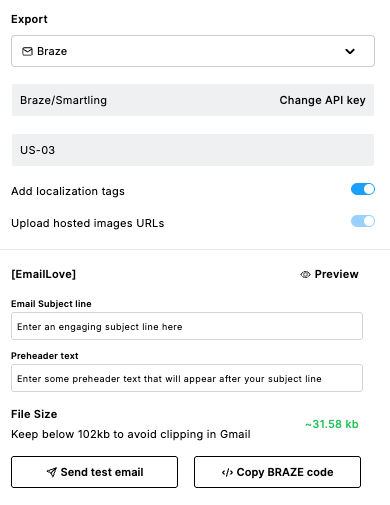
The Email Love Figma Plugin offers seamless localization capabilities when exporting to Braze, automatically wrapping all HTML text content with Braze translation tags. This feature eliminates the need to manually apply translation tags in Braze, saving significant time for teams managing multilingual email campaigns.
## How It Works
Design your email using the Email Love plugin in your primary language (typically English, but can be any language).
* Click the "Export" button in the Email Love plugin
* Select "Braze" from the dropdown menu
* Check the "Add localization tag" box
* Click "Export"
* Your email HTML will be generated with Braze translation tags (`{% translation %}`) automatically wrapped around all text content
* Each text element receives a unique ID for translation tracking
* Translation tags are applied to headings, paragraphs, buttons, and footer text (but not text within images)
* Navigate to your campaign in Braze
* Add desired locales (e.g., French, German)
* Save as draft
* Connect your translation service (Smartling, Localize, Crowdin, etc.) with Braze
* Select your campaign for translation
* Request translations using your service's workflow
* In Braze, use the "Multi-language user" option in the preview
* Select different languages to review translations
## Edit your email inside of Braze
Once you have exported your email, you can navigate to Templates > Edit Templates > Edit Message. Inside of the template editor you will have the option to either edit your email HTML or use a Rich Text editor when you click on the "Classic" tab.
## Export a Braze Content Block
In addition to exporting full email templates, you can also export individual sections of your email as Braze Content Blocks. Content blocks are reusable HTML snippets that can be inserted into multiple email templates within Braze. Perfect for shared headers, footers, promotional banners, or any component you want to manage in one place.
### How to Export a Content Block
In Figma, place the content you want to export as a content block into its own frame.
Select the frame.
In the plugin, click the **Export** button.
Select **Braze Content Block** from the export dropdown.
Enter a name for your content block.
Click **Export to Braze Content Block**. Your content will be uploaded to Braze as a content block, ready to be inserted into any email template.
### Important Notes About Content Blocks
* **Head tags are removed:** When exporting as a content block, the plugin strips out the ``, ``, and `
 ## Apply Braze Translation Tags to your email
The Email Love Figma Plugin offers seamless localization capabilities when exporting to Braze, automatically wrapping all HTML text content with Braze translation tags. This feature eliminates the need to manually apply translation tags in Braze, saving significant time for teams managing multilingual email campaigns.
## How It Works
## Apply Braze Translation Tags to your email
The Email Love Figma Plugin offers seamless localization capabilities when exporting to Braze, automatically wrapping all HTML text content with Braze translation tags. This feature eliminates the need to manually apply translation tags in Braze, saving significant time for teams managing multilingual email campaigns.
## How It Works