

Prerequisites
Before you begin, make sure you have:- An active Klaviyo account with admin access
- The Email Love Figma plugin installed
- At least one email designed in Figma using the plugin
1
Connect Your Klaviyo Account
There are two ways to connect Klaviyo to the Email Love Figma plugin. We recommend connecting with the Connect with Klaviyo button. It’s the fastest and most secure option, with no API key to create or manage. If you manage multiple Klaviyo accounts or prefer to connect manually, you can still use a private API key.
- Option A: Connect with Klaviyo (Recommended)
- Option B: Connect with a Private API Key
The quickest way to connect. No API key required.
- Open Figma and navigate to your email design
- Select your email frame
- Launch the Email Love Figma plugin
- Click the blue Export button
- From the dropdown menu, select Klaviyo (OAuth). This is its own entry, listed directly below Klaviyo (HTML Only).
- Click Connect with Klaviyo
- Your browser opens Klaviyo’s login page
- Sign in and authorize Email Love to connect
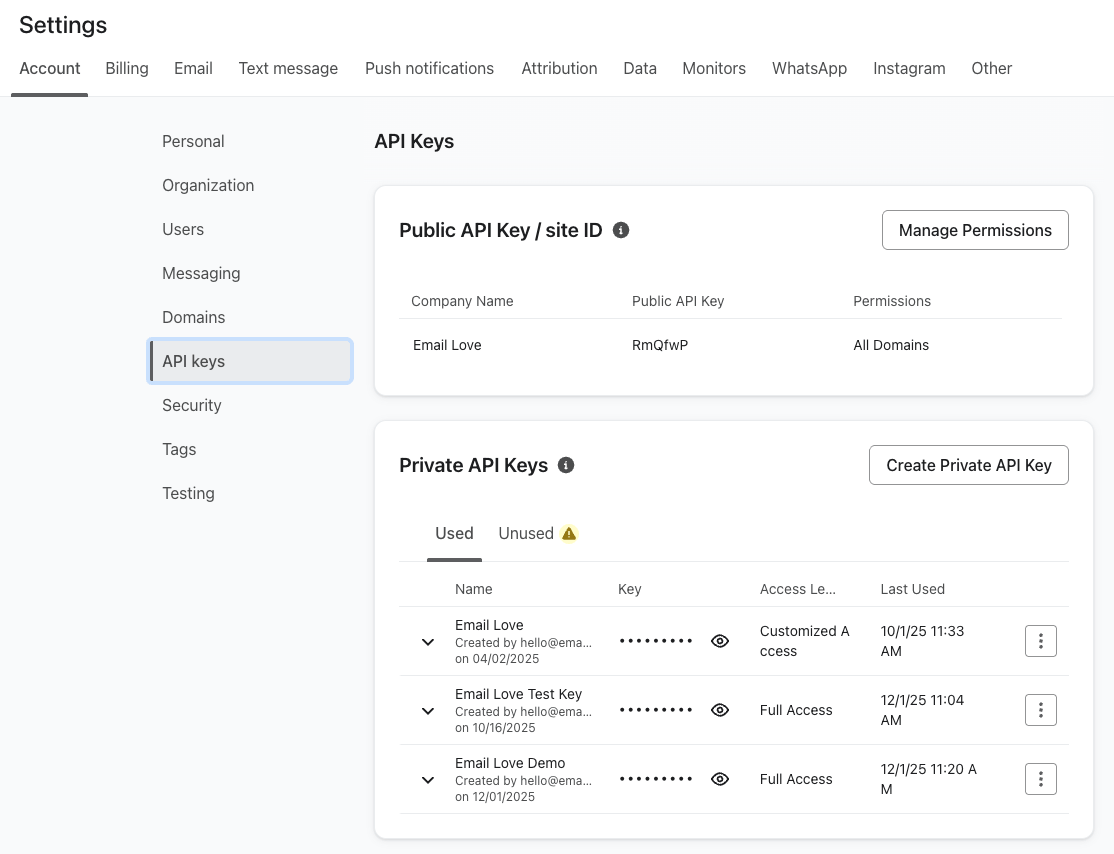
2
Export Your Email Template
Once connected, exporting emails to Klaviyo takes just seconds.
- With your email frame selected, click the blue Export button
- Select the same dropdown entry you connected with: Klaviyo (OAuth) if you used Connect with Klaviyo, or Klaviyo (HTML Only) if you saved a private API key
- Click Export
- Wait a few seconds for the upload to complete
- You’ll see a success message when the export is finished
3
Access Your Template in Klaviyo
Your exported email will appear in the Klaviyo templates library.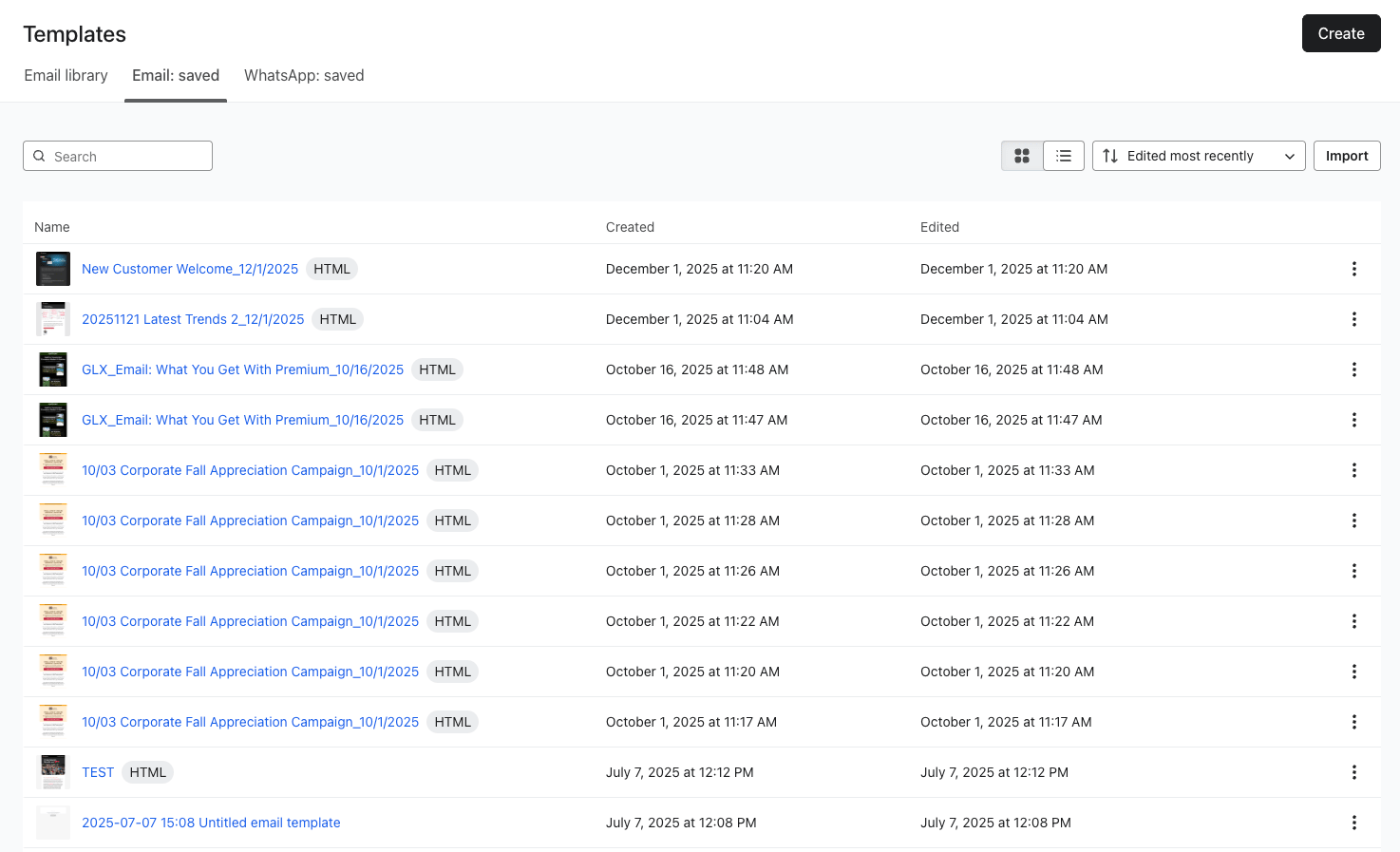
- Log into your Klaviyo account
- Navigate to Content → Templates
- Your newly exported template will appear at the top of the list
- Click Edit to preview the HTML code
- Click Preview to see how your email will render
Using Your Template in Campaigns and Flows
To use your exported template: For Campaigns:- Create a new campaign as usual
- Select your audience
- In the email content section, choose Email Saved
- Select your exported template
- Continue with your campaign setup
- Navigate to your flow
- Add or edit an email step
- Choose your exported template from the saved templates
- Configure your flow settings
Working with Dynamic Content
If you’re using Klaviyo’s dynamic content features (like abandoned cart or browse abandonment emails), the Email Love plugin supports liquid templating for personalized product feeds. Setting Up Dynamic Product Templates You can wrap your content in liquid tags to pull in dynamic data from Klaviyo events:- Use the Code component at the top of your email to identify the event type
- Customize the code based on your Klaviyo data feed structure
- Add liquid tags to pull in product titles, prices, quantities, and images
- Select image elements and add event image URLs in the properties tab
- Link buttons to unique shopping cart URLs from your data feed
{{ event.product_title }}{{ event.product_price }}{{ event.product_image_url }}{{ event.product_quantity }}
Preference Center Links
Klaviyo requires a way for subscribers to manage their email preferences, and the plugin now handles this for you automatically. On export to Klaviyo, any text in your design that reads “preferences” (for example, “Manage your preferences” in your footer) is automatically linked to Klaviyo’s preference center, the same way unsubscribe text is linked to Klaviyo’s unsubscribe URL. To use it, just include the word “preferences” in your footer text. No manual merge tag needed. If you’d rather point the text somewhere custom, add your own URL to that text layer in the Properties tab and the plugin will respect it instead.Important Notes About Klaviyo Integration
HTML Only Export: The Email Love plugin only supports HTML exports to Klaviyo. We previously supported the Klaviyo drag-and-drop builder, but it frequently broke custom HTML code and caused issues with email rendering. Exporting as HTML ensures your emails render consistently across all email clients. Why HTML Works Better: When you design in Figma and export as HTML, you maintain complete control over your email’s appearance without the risk of the drag-and-drop editor modifying your code. Template Management: Each time you export from Figma, a new template is created in Klaviyo. You may want to periodically clean up old versions from your templates library.Troubleshooting
Export fails or times out: Double-check that your API key has full access permissions. If you recently created the key, wait a minute and try again. Klaviyo sometimes takes a moment to activate new keys. “Your Klaviyo connection expired. Please reconnect Klaviyo and try again.”: Your Connect with Klaviyo authorization is no longer valid, usually because access was revoked in Klaviyo. Click Disconnect and then Connect with Klaviyo again. “Klaviyo is not connected. Please connect Klaviyo first.”: You have Klaviyo (OAuth) selected but haven’t authorized yet. Click Connect with Klaviyo and finish the login in your browser. If you meant to use a private API key, switch the dropdown to Klaviyo (HTML Only) instead. The Export button is greyed out on Klaviyo (OAuth): The button stays disabled until the connection completes. If the panel still says Waiting for Klaviyo authorization…, finish the login in your browser; if it timed out, click Connect with Klaviyo again. Template appears blank in Klaviyo: Make sure you selected the correct email frame before exporting. If you selected a nested layer instead of the top-level frame, the export may not include your full design. Images not loading: The plugin automatically hosts your images during export. If images appear broken, check your internet connection and try re-exporting. See Image Hosting for more details. Dynamic content not rendering: Liquid tags only render when the email is sent through a Klaviyo campaign or flow with the appropriate event data. Use Klaviyo’s preview tool with a test profile to verify your dynamic content.Related Articles
- Export Overview: Understand all export options and how the plugin converts your Figma design to HTML
- Image Hosting: How the plugin handles image hosting during export