

Create urgency and boost engagement by adding an animated countdown timer to your Email Love Figma template. This guide walks you through the entire process using Nifty Images (or any countdown timer provider).
What You’ll Need
- Email Love Figma Plugin installed
- A Nifty Images account (or similar live content provider)
- Your email template in Figma
1
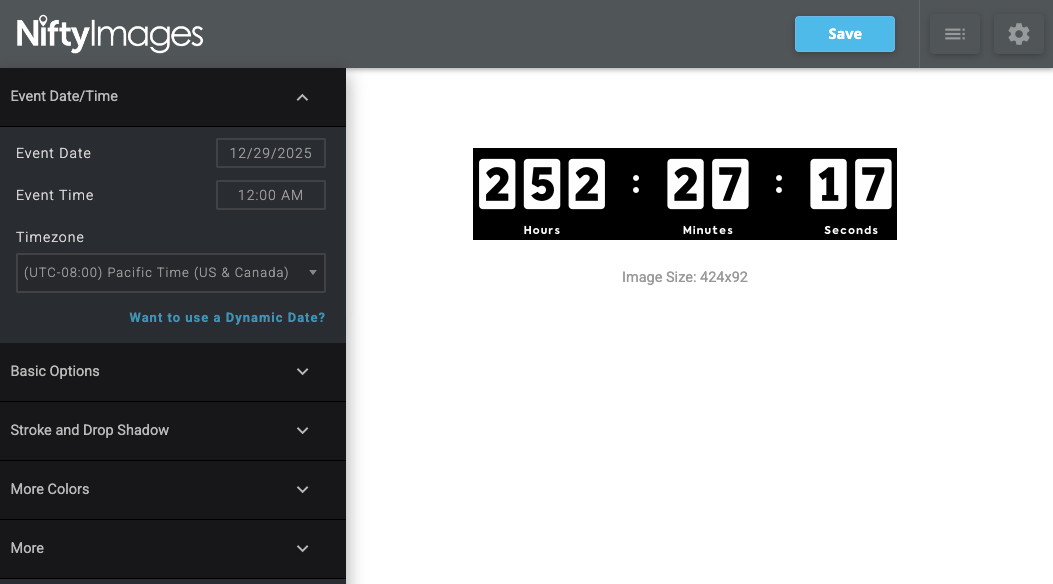
Create Your Countdown Timer in Nifty Images
- Log into your Nifty Images account
- Click the pink Create Image Timer or Data Source button
- Select Countdown Timer from the options
- Configure your timer settings:
- Set your event date and time
- Choose your preferred design
- Note the image dimensions (the default is 424px × 92px)
- Save your countdown timer
- Copy the dynamic image URL. You’ll need this later.
2
Add the Timer Image to Your Figma Template
- Open your email template in Figma
- In the Email Love plugin, go to the Image section
- Select the image component with padding (the second option with a white border). This gives you a wrapper with customizable spacing around your timer.
- Replace the placeholder image with your static countdown timer image
3
Configure the Image Settings
- Select the image and set it to Fit to see its actual dimensions
- Adjust the container size as needed
- Switch to Fill mode so the image fills the available space
- Use the wrapper padding to control the timer’s visual size. For example, 120px padding on each side works well for desktop.
Mobile Optimization
The desktop padding will likely be too large on mobile devices. Here’s how to fix that:- Select the wrapper element
- Open Mobile Styles in the plugin
- Enable Mobile Specific Padding
- Reduce the side padding to around 30px for mobile
4
Style the Background
Match the countdown timer’s background to your email design:
- Select the wrapper or section containing the timer
- Change the background color to match your design (in this example, black to match the hero section)
- Adjust any spacing between sections as needed
5
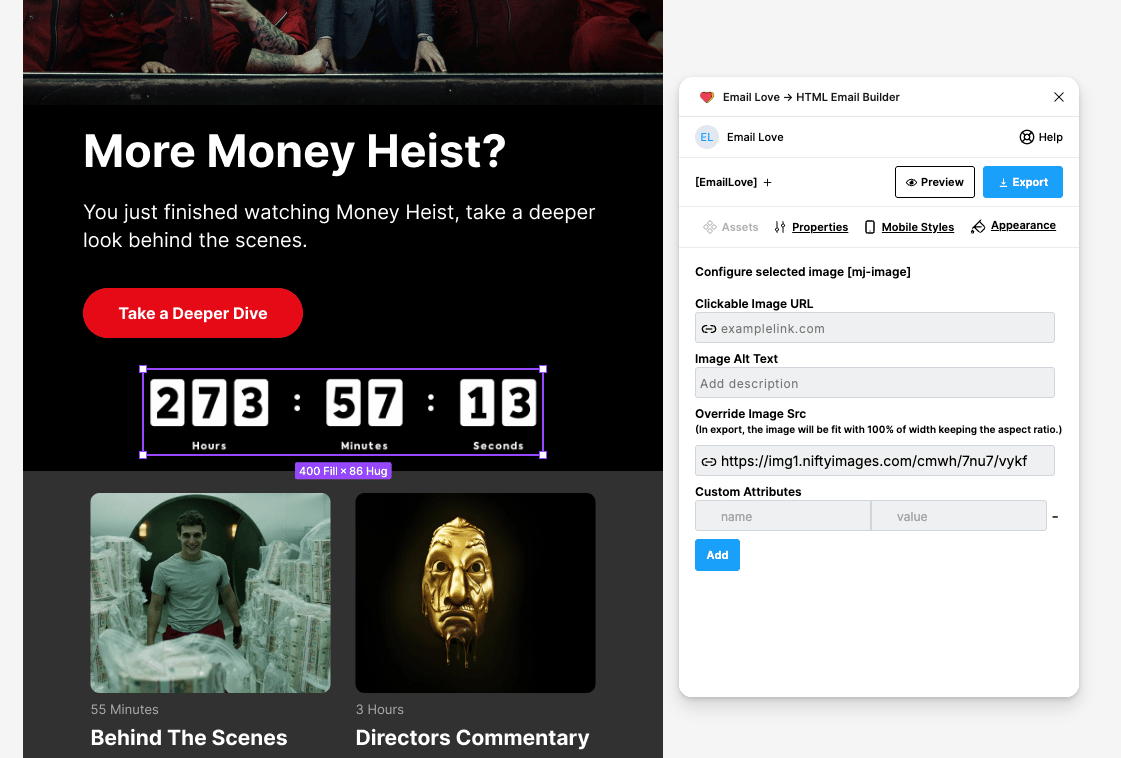
Add the Dynamic URL (The Important Part!)
This is what makes your timer actually count down in the inbox:
- Select the image in Figma
- Open the Properties tab in the Email Love plugin
-
Paste your dynamic URL from Nifty Images into the image source field
6
Preview and Export
- Click Preview in the plugin to verify the countdown is animating
- Once confirmed, export your template as HTML or directly to your ESP