

The Email Love Figma Plugin includes dark mode preview functionality and allows you to customize how your emails appear in dark mode on supported email clients. This guide will walk you through previewing and optimizing your emails for dark mode.

Understanding Dark Mode Support

Not all email clients support custom dark mode styling. Here’s what you need to know:
Apple Mail (Customizable, with one catch on Mac) Custom dark mode colors are supported on Apple Mail on iPhone, iPad, and Mac. iPhone and iPad apply your dark theme exactly. Mac Mail applies it too, but it still forces any light background (white or near-white) to dark grey, so choose dark or mid-tone colours for anything that has to stay visible. See the setup below. Other Email Clients (Auto-Inverted) Gmail, Outlook, Yahoo, AOL, and most other email clients automatically invert colors when in dark mode. This means white backgrounds become black, black text becomes white, and other colors may shift in unexpected ways (for example, yellow can become brown). Unfortunately, there is no way to override these color changes. No email design tool or platform can control dark mode rendering across these clients. For a comprehensive breakdown of dark mode support across email clients, refer to Litmus’s dark mode support chart.

The Setup That Works Everywhere

We tested this in September 2026 across Mac Mail, iPhone Mail, Gmail on Android, Outlook 2019/2021/365 on Windows and Outlook on Mac, in light and dark mode. This is the setup that came out readable in every one of them. It takes five minutes and you only do it once per file.
1

Make sure every wrapper's dark-mode Content Color is Transparent

A white background on a wrapper is fine in dark mode as long as that wrapper’s own dark-mode Content Color is set to Transparent. The plugin sets this on every wrapper it creates, so most files already have it: select a wrapper, open the Appearance tab, and check the Content Color under the dark theme. In dark mode the exporter then clears the white and your frame’s dark background shows through.Wrappers that were built by hand, by a script, or migrated from another library can be missing the override. If you would rather not check each one, the simple alternative is to give the email frame the white fill and remove the white fill from the wrappers, sections and columns inside it. Coloured fills (a grey band, a brand-colour card, a dark footer) stay either way.
2

Set the dark theme to black and white

In the Appearance tab, with the frame selected, set the dark theme to: Background #000000, Content #000000, Text #FFFFFF, Link #FFFFFF. Black on black avoids seams between the frame background and the modules, and white text reads on all of it.
3

Give buttons a mid-tone brand colour with white text

Set Button Color to a mid-tone version of your brand colour and Button Text Color to #FFFFFF, and set both, not just one.Do not use a white or light button in dark mode. Mac Mail forces any light background to dark grey even when you asked for it in the dark theme, so a white pill turns into a grey pill with unreadable text. Dark backgrounds are left alone. A mid-tone brand colour (a blue, a lighter purple, a red) sits between those two rules: dark enough that Mac Mail keeps it, bright enough to read on black, and it survives Gmail’s and Outlook’s inversion too.
4

Swap the logo for dark mode

A dark logo on a dark background disappears. Use the dark mode logo option in the Appearance tab to supply a light version. If you only have one logo file, put it on a brand-colour bar so it works in both modes.
5

Keep a colour band where you want one

If a particular module should keep its background in dark mode (a brand-colour card, say), select that wrapper and set its Content Color in the Appearance tab. Pick a dark or mid-tone colour; a light one will be forced dark on Mac Mail.
You do not need any extra head code, meta tags or custom CSS for this, and adding them can make things worse. The one batch in our test where Mac Mail ignored the dark theme and repainted the email in its own colours was the one with a custom color-scheme block in the head and a white dark-mode button. Removing both fixed it. The exporter already writes the color-scheme rules the clients need.

Previewing Dark Mode

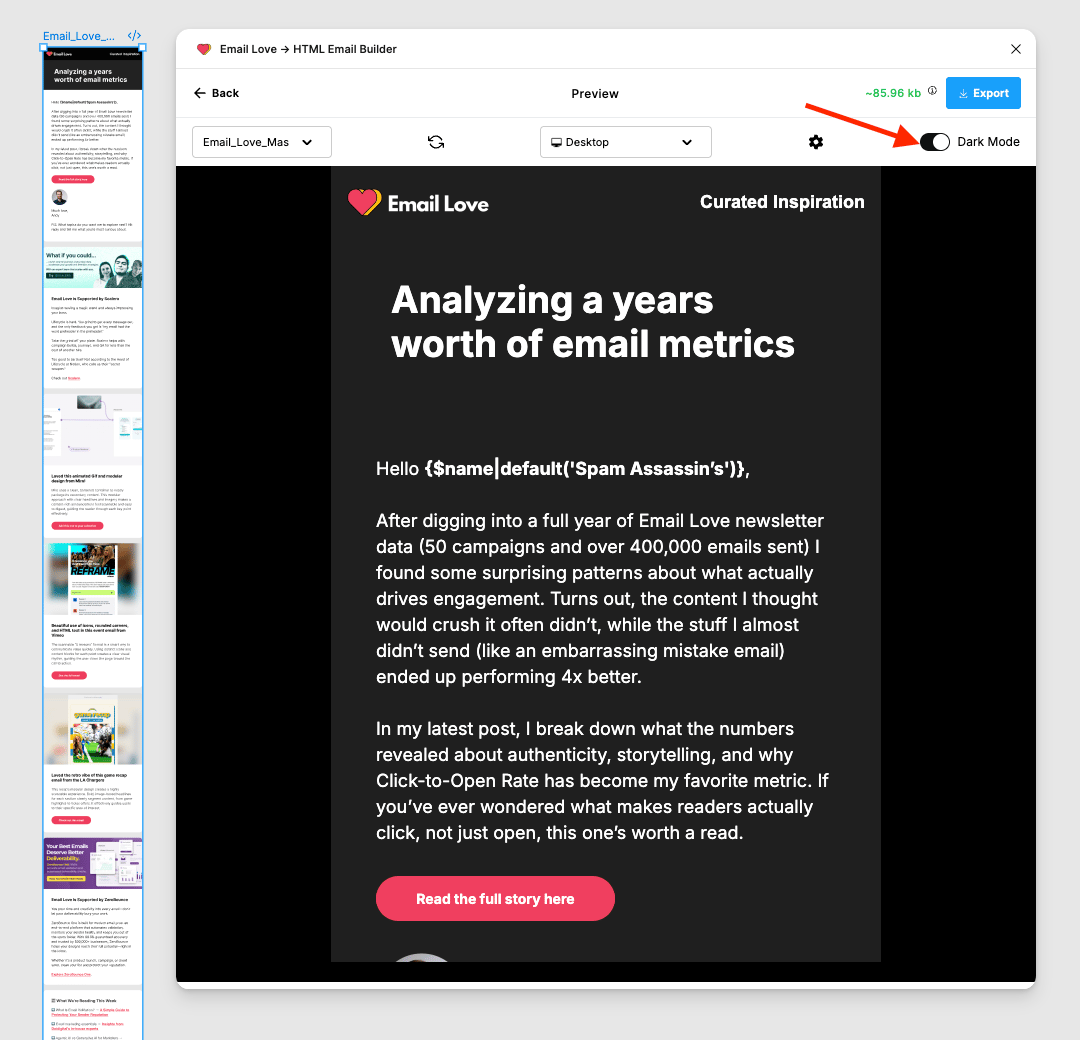
To see a basic preview of how your email will render in dark mode, click the Preview button in the plugin, then toggle the Dark Mode option in the preview window. This preview shows a simplified version of color inversion, giving you a general sense of how your email might appear, though actual rendering will vary by email client. Dark mode toggle in the plugin preview window
Customizing Dark Mode Colors (iOS Only)

In the plugin, the dark mode section is labeled “DARK THEME (iOS Only)” to make it clear that these custom color overrides only apply to Apple Mail clients on iPhone, iPad, and Mac. If you want to maintain control over your color scheme on iOS devices rather than allowing automatic color inversion, follow these steps: Frame-Level Customization Select your email frame in Figma, navigate to the Appearance tab, and locate the Color Style section. Here you’ll find options to define separate light mode and dark mode color schemes. In the dark mode section, you can specify custom colors for backgrounds, text, buttons, and other elements. Wrapper-Level Customization For more granular control, you can override colors on a wrapper-by-wrapper basis. Select an individual section or wrapper within your email, go to the Appearance tab, and adjust the dark mode colors in the Color Style section. This approach provides the best results when different sections of your email use different color schemes.

Best Practices

Consider User Preferences Users who enable dark mode typically prefer darker color schemes. Overriding dark mode to maintain your light mode colors may go against user expectations and preferences. Consider whether maintaining brand consistency is worth potentially compromising the user experience. Test Across Devices Always test your emails using a platform like InboxMonster, Litmus, or Email on Acid to see how they render in dark mode across different email clients and devices. Pay special attention to how colors transform in clients that auto-invert. Accept Some Limitations Since you cannot control dark mode rendering in Gmail, Outlook, and other major clients, focus your customization efforts on the iOS ecosystem only if your audience heavily uses Apple devices. Otherwise, design emails that look acceptable when colors are inverted automatically.

Reusing Your Dark Mode Colors Across Files

Once you’ve configured your light and dark theme colors, you can check the “Use these colors in all files” checkbox below the Dark Theme section. This saves all 12 color values to the workspace level so they automatically load when you open a new Figma file. File-level colors always take priority when both exist.

Testing Your Dark Mode Design

After customizing your dark mode colors, export your email and test it across multiple email clients to ensure it renders as expected. Pay particular attention to iOS devices where your custom styling will appear, and verify that auto-inverted versions in other clients remain readable and on-brand.