

How the pieces fit together
Reports holds observations. Memories holds lasting facts and preferences. The Assistant can draw on both without requiring you to read a report before every draft.
You can start with brand knowledge and Email Love’s archive without connecting an ESP. Reporting reads aggregate performance only. It does not access or change contacts, recipient lists or individual delivery events.
1. Connect your email platform
A workspace owner or admin opens Integrations, chooses the platform and saves the connection. Give the account a name your team will recognize, especially if you connect more than one account.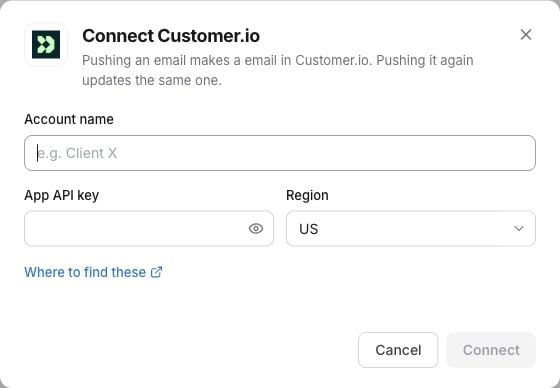
Customer.io is one example. The fields differ by platform; these credentials are blank.
2. Choose competitors and reporting sources
Open your design system’s AI knowledge → Competitors & results. You can also reach these settings through Reports → Email performance → Manage insight settings.- Choose your Category.
- Use Find a brand on Email Love and Search brands to add up to five competitors.
- Choose an ESP account. Its reporting options load automatically.
- Select the available campaigns, newsletters or aggregate source. Some platforms ask for a report ID instead. You can choose up to 20 sources across connected accounts.
- Click Save and load results to save your selection and queue the import.
- The Email performance report updates when the import finishes. Use Update now for a later manual refresh.
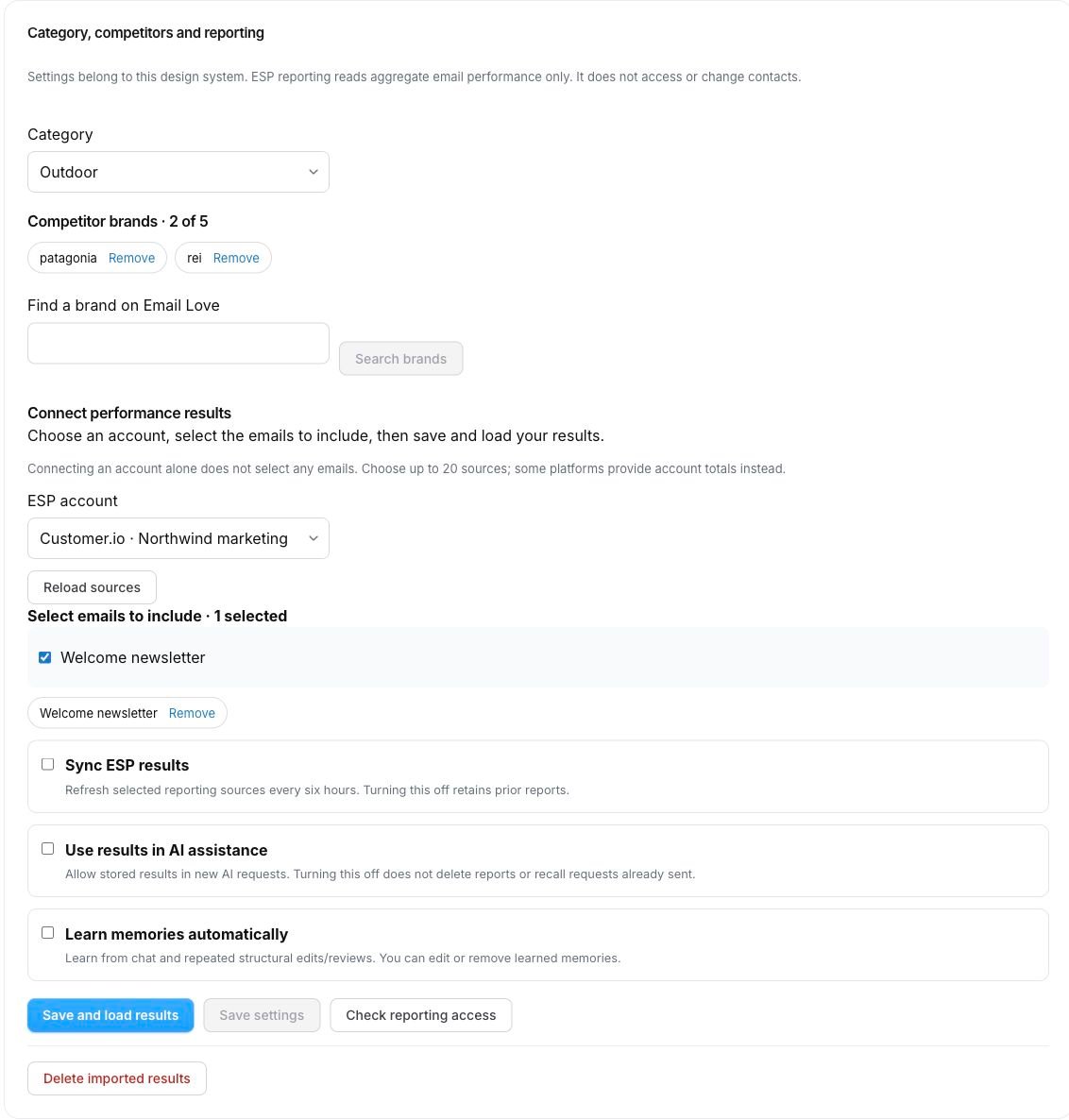
Demonstration settings. Category, competitors and reporting sources are selected for one design system. The three automatic controls start off.
These controls are independent. You can read reports with AI use off, or let the Assistant use stored results while scheduled sync is off.
See source selection, controls and supported platforms for the details.
3. Inspect the evidence
In Reports, choose the same design system and open Email performance or Category trends. For ESP results, check the provider, reporting scope, window and capture date. Some reports cover a campaign; others cover an entire account or server. Unknown means a value was not supplied, not zero. For category trends, look for a relevant observation and click View evidence. Email Love’s archive describes what brands send, including examples and available journeys. It does not reveal your competitors’ opens, clicks or revenue.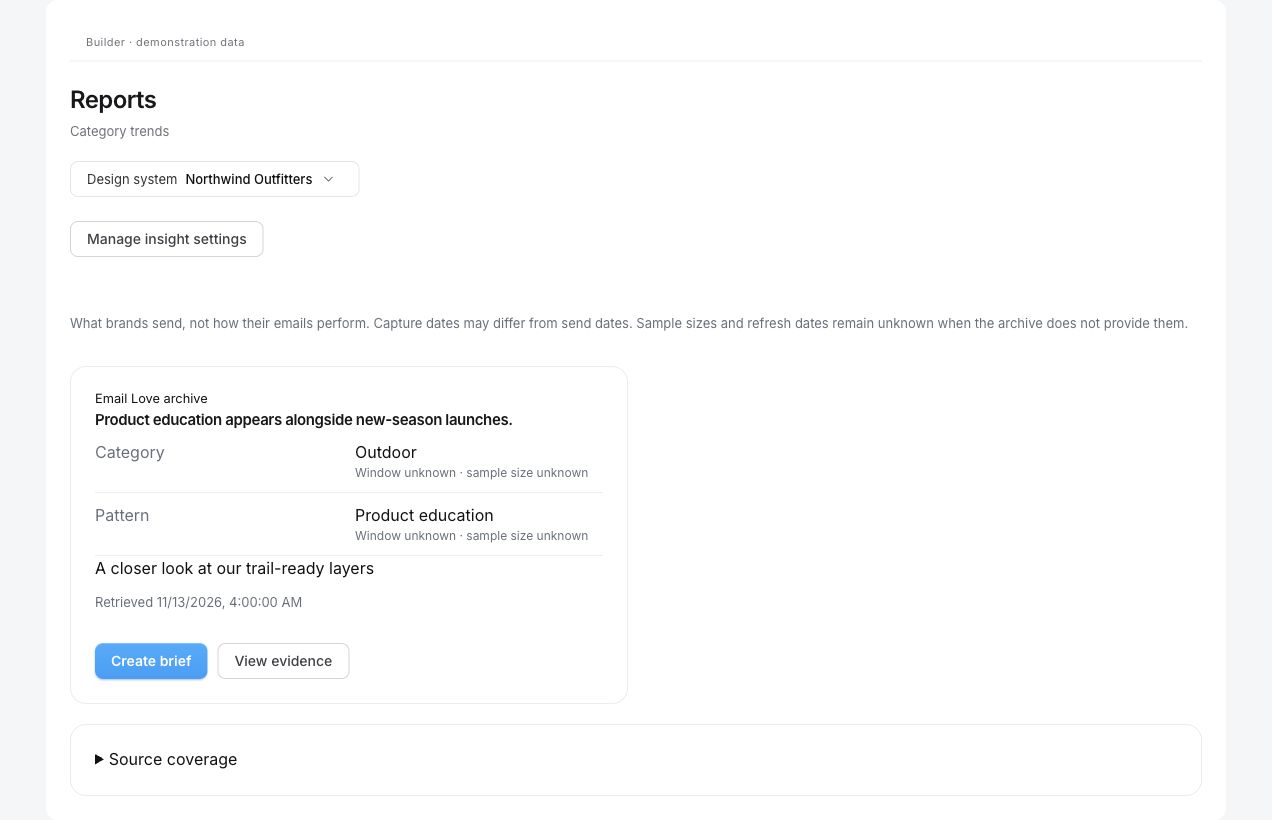
Demonstration category observation. View evidence shows its source and limitations; Create brief gives you a starting point for an email.
4. Build an email from a brief
Click Create brief on a finding, or go straight to Overview and write your own brief. Choose the design system you configured and the campaign the email belongs in.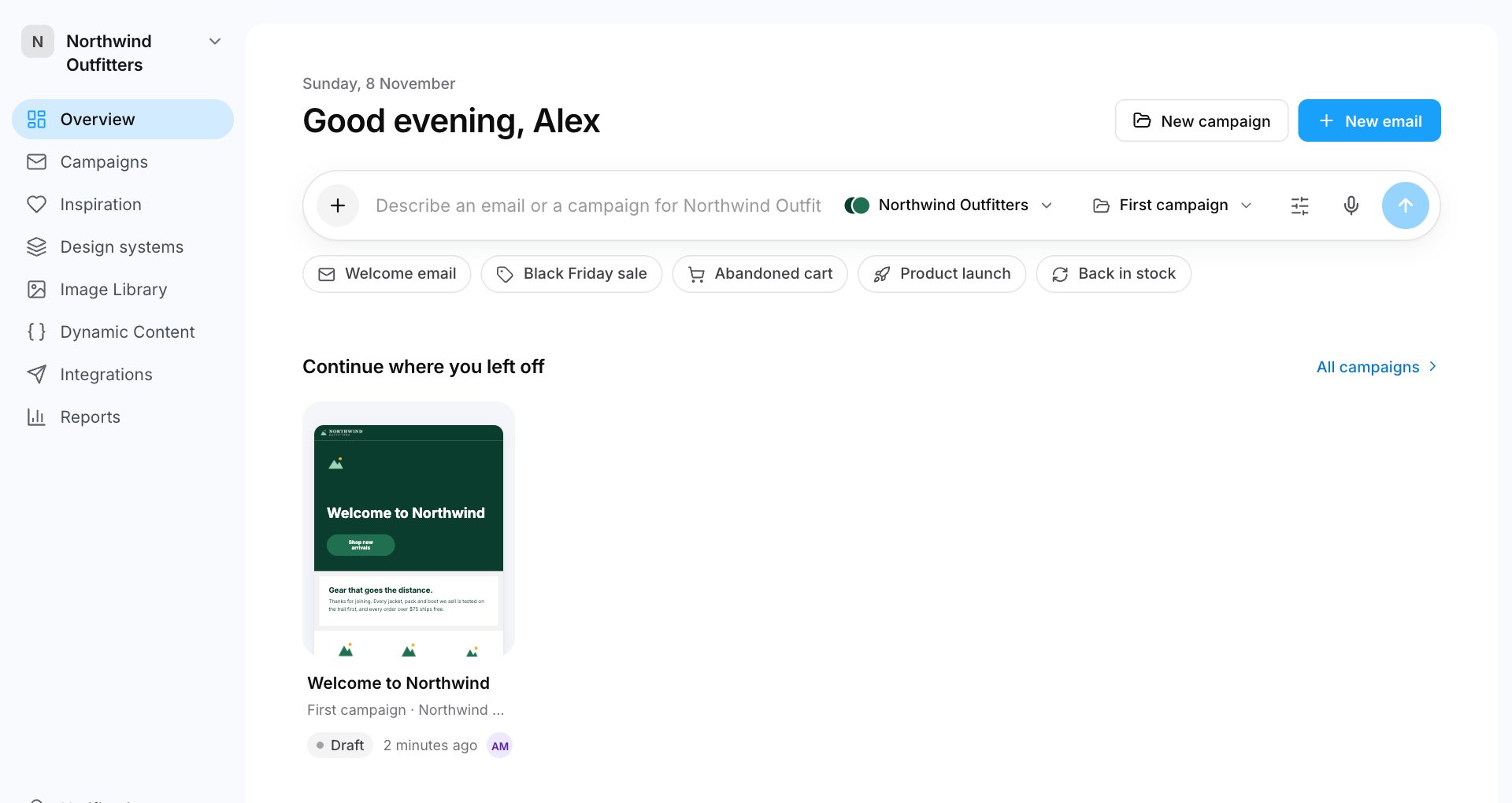
Start on Overview and check the design system and campaign before submitting your brief.
Draft a welcome email for Northwind Outfitters. The audience is new subscribers and the goal is to introduce our trail gear. Use our brand instructions, relevant category examples and any available recent ESP findings. Use one primary CTA, “Explore trail gear,” linking to our supplied collection URL. Explain the evidence behind your choices and flag anything missing.Add your actual offer, dates, product facts and destination URL. Insights provide context; they do not replace the brief or give the Assistant facts about an offer you have not supplied. The Assistant retrieves relevant evidence rather than putting the entire archive into every request. Stored ESP findings are available only when Use results in AI assistance is enabled. Where a reply includes Why these choices, expand it and open View evidence to inspect the cited observations. Not every reply includes citations. Check the draft’s copy, imagery and links. For the full drafting workflow, see The Assistant.
5. Edit, review and learn
Open the email and use AI chat to refine it. Select a section first to focus a request, or edit its fields yourself. Chat applies edits directly; use Undo to reverse a change. Ask teammates for feedback through comments and sign-off. Learning is selective. With Learn memories automatically enabled, Builder can keep lasting facts from chat and repeated structural edit/review observations across three distinct emails. It does not turn every rewritten sentence into a brand preference or infer a winning design from campaign counts. If a rule should apply immediately, add it yourself to Instructions or Memories instead of waiting for a pattern. For example, add “Use sentence case for headlines” as an explicit brand rule. Open AI knowledge → Memories to inspect what is remembered:- Expand Why this was remembered on a learned memory to inspect its evidence and scope.
- Edit a memory to correct it. Human edits protect it from automatic changes.
- Remove a memory you no longer want used.
- With automatic learning off, use Remember or Dismiss for chat suggestions.
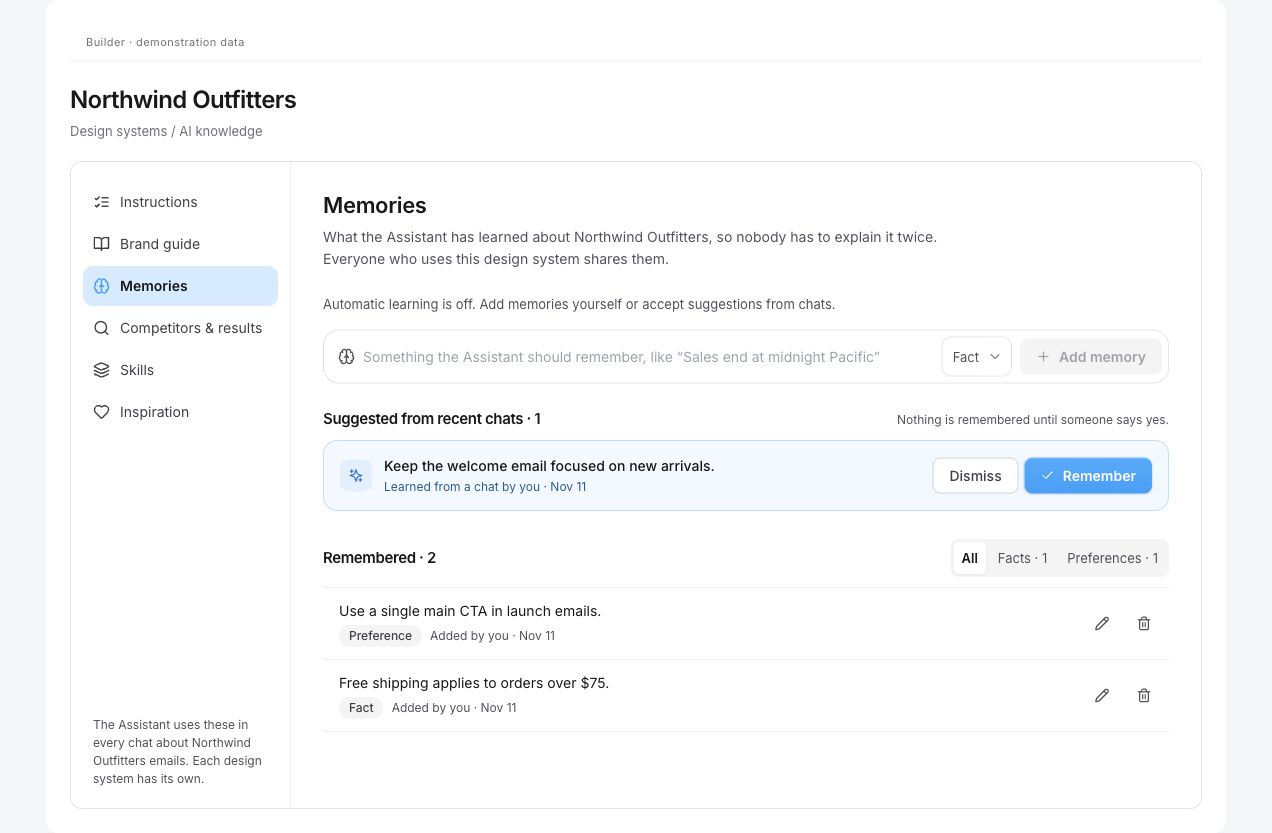
Demonstration memories with automatic learning off. Suggestions stay separate until you choose Remember; saved items can be edited or removed.
6. Check, export and use the next results
Before exporting, resolve blocking Checks, preview the email, send an inbox test and complete your team’s sign-off. Insights do not bypass these steps.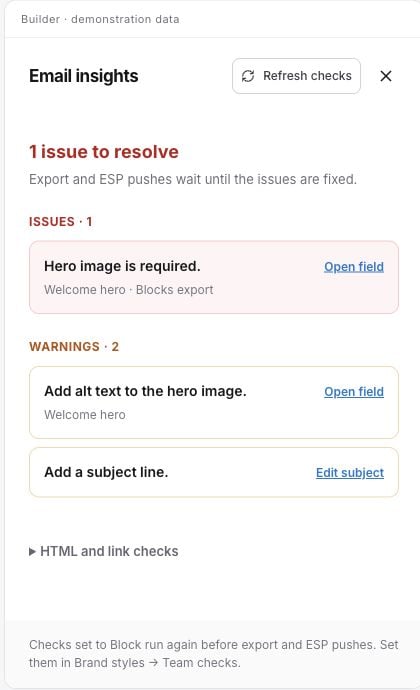
Example checks with an issue to fix before export. Open the field named by a check, make the correction and run checks again.