

Connect Customer.io
- Get an App API key with access to Customer.io Design Studio. A Track API key is not the key used by this integration.
- In Builder, open Integrations > Customer.io as a workspace owner or admin.
- Enter the App API key and select the account’s US or EU region.
- Save.
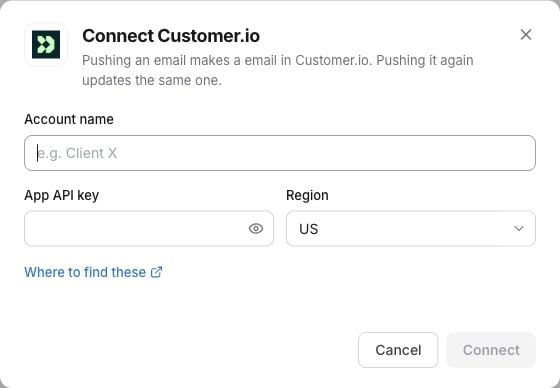
Connect Customer.io in Integrations before exporting. This example shows blank connection fields; use the credentials for your account.
Choose what to create
Open the email in Builder, click Export, and select your Customer.io account. Under Create in Customer.io, choose:- Email for a Design Studio email you can use in Customer.io.
- Reusable template for a starting point you can use to make more emails there.
Editable export stops if a block cannot be represented safely. Review the result in Customer.io, including desktop, mobile, fonts and any code blocks.
You can enter a Folder ID as a Customer.io folder UUID, choose Use the root folder, or leave the optional folder choice empty. Updates preserve the saved folder.
Click Export to Customer.io. Builder reads the saved destination back before confirming success.
Preview the saved content
After a verified export, reopen the Customer.io export dialog and click Preview saved content.-
Enter fictional sample data as JSON. For example:
- Click Render sample data.
- Review the rendered content and switch to the mobile view when needed.
- Try missing values as well as populated values to check your fallbacks.
customer, event, campaign, journey, message, objects or trigger. Keep the sample under 32 KB.
A reusable template without sender settings may show a sender warning in the preview. Set the final sender and message settings when using it in Customer.io. A successful content preview is not a deliverability or inbox-rendering test.
Update an email or template
Export to the same account again and choose the update option. Builder checks the destination against the last verified export before writing and verifies the saved result afterward.- Existing asset type, editing format and folder stay fixed in the dialog. Create a new copy to choose a different type or format.
- If the content is already up to date, Builder reports that no export allowance was used.
- If content changed in Customer.io, the update stops. Keep editing that version there or create a new copy from Builder.
- An older export without a verified destination may need a new copy.
Use the result in Customer.io
Exports do not link the asset to a workflow, publish it, activate an audience or send a message. Choose where to use the email or reusable template in Customer.io, set the message details, and test it before sending.Troubleshooting
See verified updates and delivery status for the shared export behavior.