

Draft an email from Overview
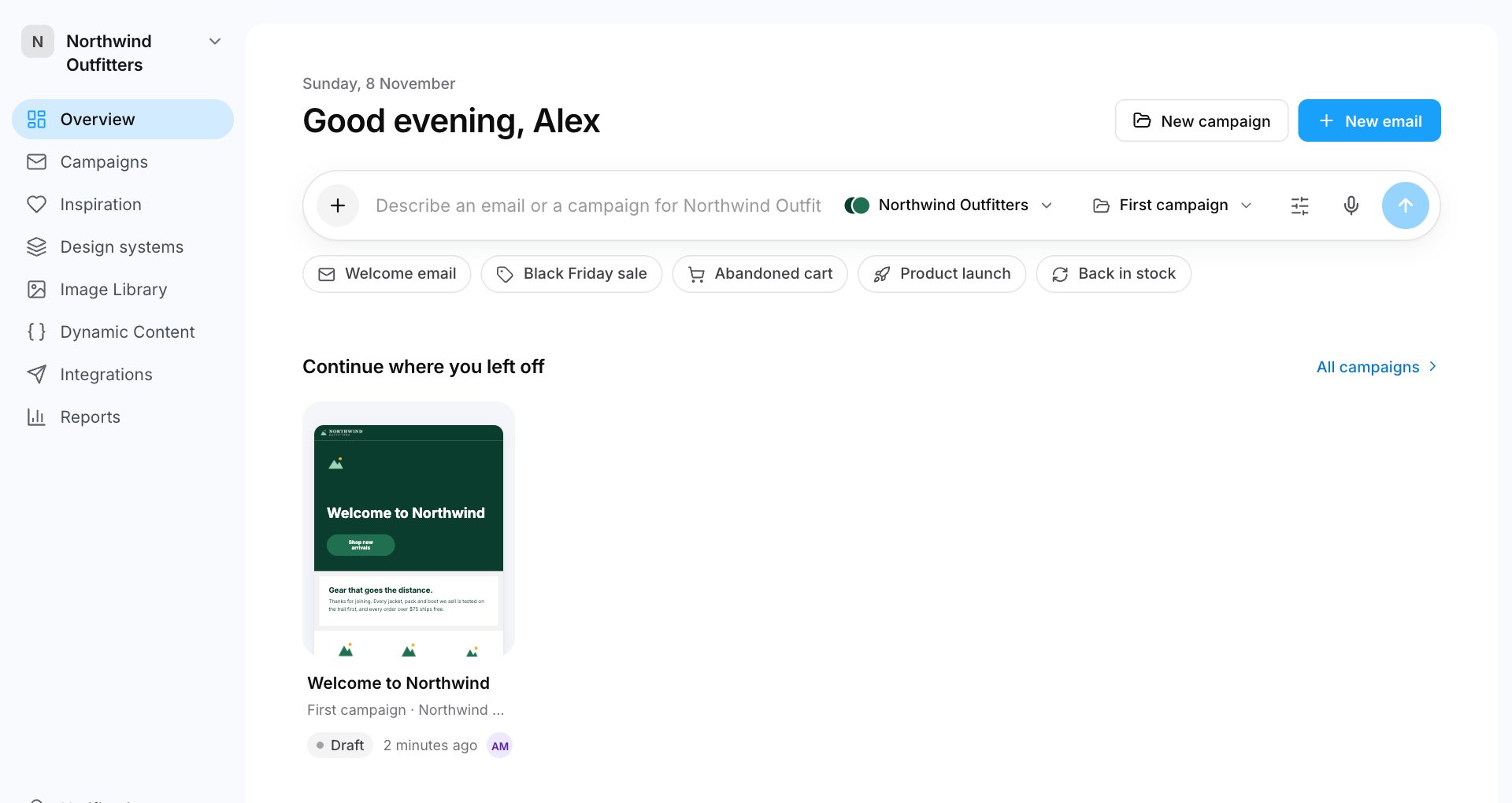
- Go to Overview.
- Describe the email in the box, for example: “A welcome email for new Northwind Outfitters customers. Mention free shipping over $75 and our 60-day returns.”
- Check the pills in the box:
- The design system to build it from.
- The campaign it goes in. Choose New campaign to make one named after the email.
- Press the arrow, or ⌘ Enter.
Add more to the brief
Click + in the box:- Upload a brief or file: a PDF, Word, text or Markdown file.
- Add a Figma link: paste a link to a Figma frame. The Assistant reads the frame and its copy.
- Find inspiration on Email Love: follow another brand’s layout and style. Up to three emails.
- Start from one of your emails: send the brief to an email you already have.
Tools
The sliders button in the box has more options:- Skill: a set of instructions for a kind of email. Pick one of your team’s skills or an Email Love playbook. See AI knowledge.
- Write in: the language to write in.
- Suggest from your likes: use emails you’ve liked on Email Love for layout and style ideas. Only you see these.
- Links to your design system’s Instructions, Memories and Inspiration, and to Connectors.
The Assistant in the editor
Open an email and click Assistant at the top of the right panel. Ask it anything about the email, for example:- “Draft a back-in-stock email for our trail boots.”
- “Rewrite the selected section to be shorter.”
- “Tighten the copy.”
- “Check this before I export it.”
Accept or reject changes
The Assistant suggests changes instead of making them straight away. You see a card with each change and its before and after. The changes also show on the canvas.- Untick any change you don’t want.
- Click Accept with the number of changes, for example Accept 3 changes. Or click Cancel proposal to drop them.
Before you send
Replies can include a Before you send list: placeholders to fill, images to add, links to check. Work through it before you export. The Assistant leaves labelled placeholders for images and facts it doesn’t know, such as a customer quote.Memories
When you tell the Assistant something worth keeping, such as “we never use exclamation marks”, it may ask whether to remember it for the design system. Click Remember to keep it for everyone who uses the design system. See AI knowledge.Smaller AI helpers
- Suggest next to Subject in the Style panel: subject line ideas.
- Write with AI on an image: alt text.
- Review with AI in the Comments panel: a review of the email. See Comments and sign-off.