

Review and export
- Open a campaign and select up to 25 Builder emails.
- Click Export selected.
- Choose the Destination and account. Only supported accounts available to every selected email appear.
- Under What to export, choose Update previous exports; create missing assets or Create new copies for every email.
- Set the options for new assets, then click Review exports.
- Check each email’s saved revision and whether it will update a particular asset or create a new one.
- Click Export and keep the page open while the batch runs.
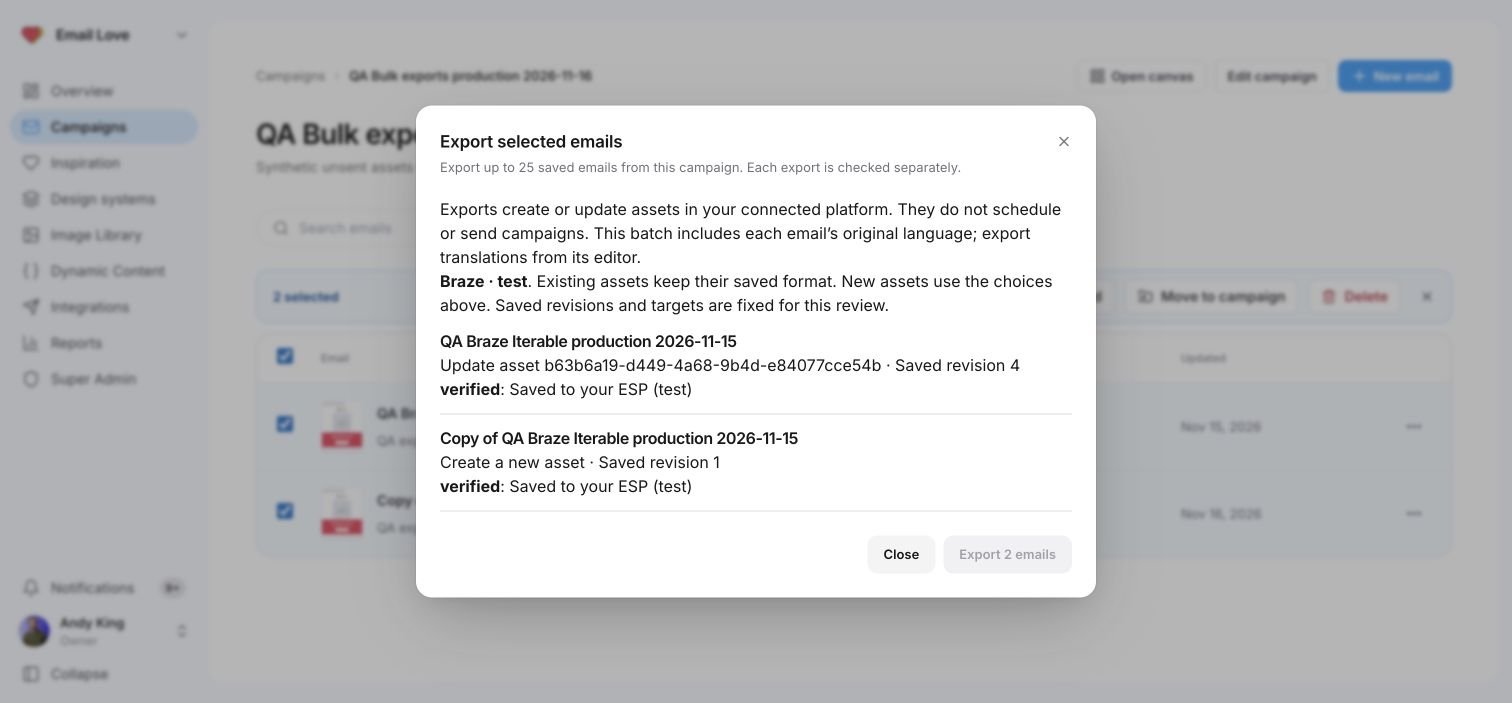
Two synthetic QA emails exported through the production dialog. Each row shows its action and verified result.
Supported destinations and languages
Bulk export supports Customer.io, Klaviyo, Braze email templates and Content Blocks, Iterable templates and snippets, and HubSpot with advanced exports enabled. The batch currently includes each email’s original language. Export approved translations from the individual email editor. Marketo, Salesforce Marketing Cloud and other platforms also remain available through the individual editor. Existing assets keep their saved editing format and folder. Common options in the batch dialog apply to new assets. If you choose updates and an email has no previous export, Builder creates a new asset. HubSpot coded templates cannot be updated, so choose new copies or export those emails separately. Each email still needs the required role, plan, approval and export checks. Builder checks that the reviewed revision, campaign, account and destination still match before sending that row.If a batch stops
Exports run one at a time. A conflict, error or unconfirmed delivery stops later rows.- Verified means Builder read back the saved result. An already-current asset can be reported as Already up to date.
- Not sent means that row did not run. Completed exports are kept.
- Check delivery status looks up the original attempt without exporting again.
- Stop after current export lets the current request finish before stopping the remaining rows.