

Start a plan
- Open a campaign and click New email.
- Choose Plan with AI.
- Select your Design system and enter an Email name.
- Click Continue to AI chat.
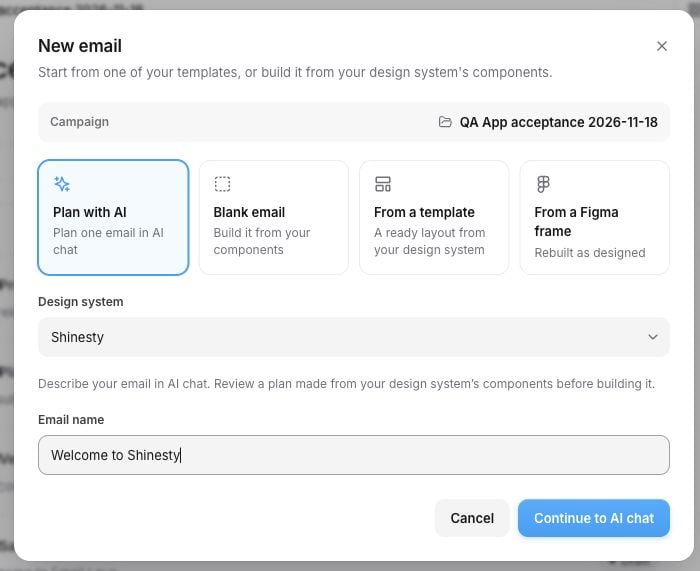
Choose Plan with AI in the existing New email dialog.
Plan a short welcome email for new subscribers. Use our saved logo and footer, with a friendly note under 70 words. End with an inline link to our story at [your URL]. No hero image, standalone CTA button, discount or offer. Show me the plan first.
Review and change the plan
The plan card lists actual components from your selected design system, in order, with a purpose for each section. Open Why this structure for the reasoning.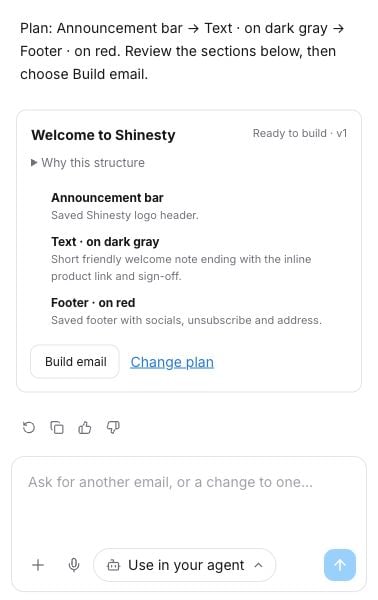
Review the proposed sections before choosing Build email.
Plan mode handles one email at a time. For a sequence, plan each email separately. The regular campaign chat can also draft a sequence directly.
Build the email
Click Build email when the sections look right. The AI creates a draft with the approved components and order, writes the editable content, and saves it in the campaign. Use Open email to see the draft on the campaign canvas, or the result card’s pencil button to open it in the editor. Continue chatting to change the copy or links. Review the desktop, mobile and dark mode previews.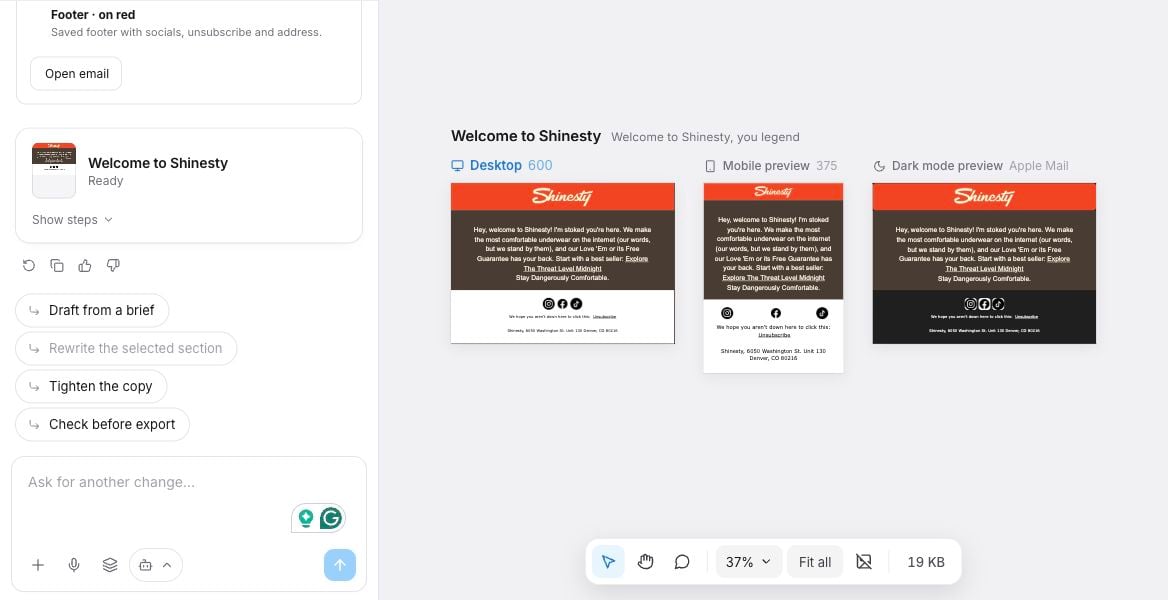
The saved draft opens in the existing editor, with AI chat and responsive previews.
Use your real brand details
The AI uses your design system’s saved logo, brand guidance, footer address, navigation and social links. Keep these up to date in your brand styles, components and AI knowledge. Saved navigation labels stay unchanged. Optional promotion terms and author credits from an old campaign can be removed from the new draft. Protected fields and existing ESP tags stay intact. Review Before you send for any details that still need your attention.Inline text links
Ask for links directly in chat, such as “Link the words Read our story to https://example.com/our-story”. You can also ask to change a link’s destination or remove the link while keeping its words. Supply the destination, or use a product or page URL already saved with your brand. AI-added links are underlined and use the surrounding text color so they remain readable on the section’s background.Unsubscribe placeholders
https://unsubscribe.com and {{@@unsubscribe@@}} are intentional unsubscribe markers. Leave them in your design system and draft. When you export for a supported email platform, the Builder replaces them with that platform’s unsubscribe syntax. The platform resolves it for the recipient.
These recognized markers are not missing brand information and do not need a manual replacement during planning. Generic HTML export has no recipient-specific unsubscribe service: connect its placeholder to your sending platform before sending.