

Run a test
- Save the email you want to test.
- Open Previews and click New test, or Create your first test if you haven’t run one yet.
- Choose a saved email from the current workspace.
- Choose your checks: Email previews, Links, Images, Accessibility and Spam.
- For screenshots, keep the 12 default variants or select the clients and modes you need. Use Mobile, Desktop and Webmail to narrow the list.
- Review This test. It shows how many previews the run will use and how many you have available.
- Click Run selected tests.
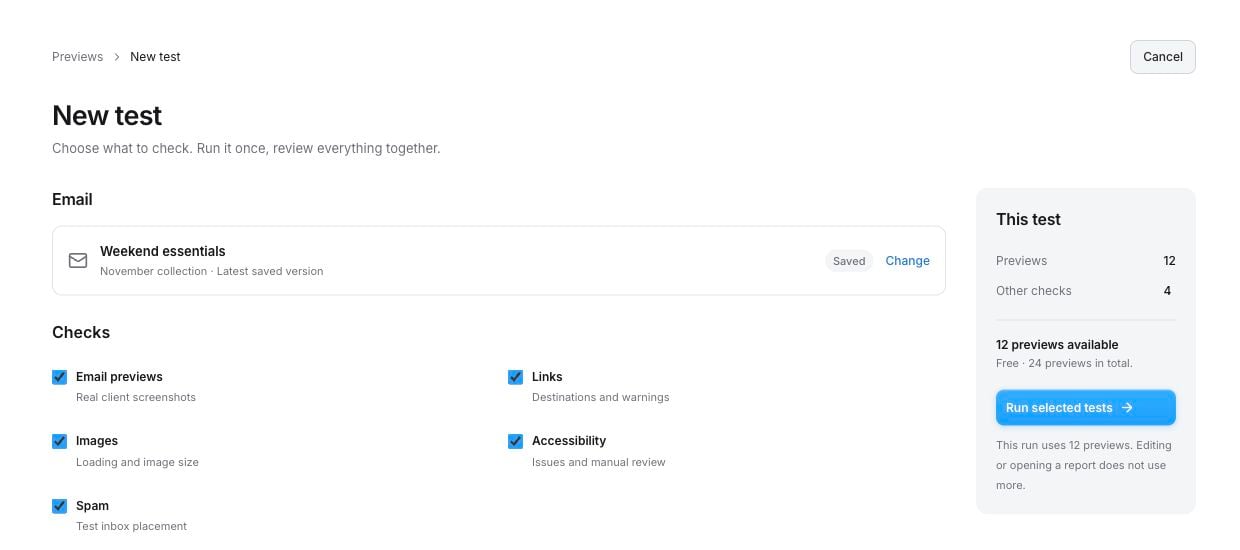
Choose the checks you need. This test shows the preview count and remaining allowance before you start.
Know when the run is finished
Screenshots and checks can finish at different times. You can review the results that are ready while the others continue.Your preview allowance
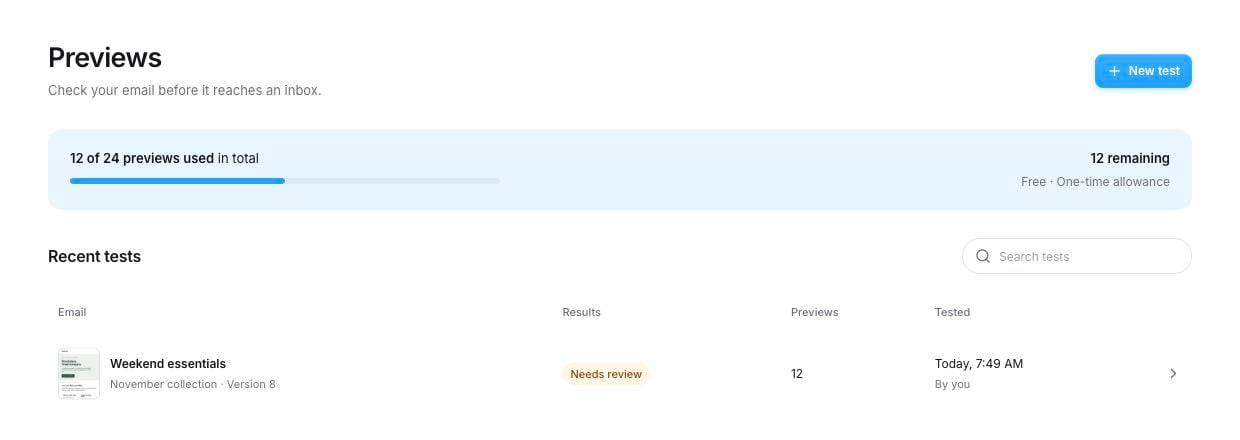
Example Free account after one default run: 12 previews used and 12 remaining. The one-time allowance does not reset each month.
Supported clients and devices
You can select up to 24 variants. Availability is shown in the client picker when you start a test.Review and download screenshots
The Previews tab shows your selected variants in a gallery.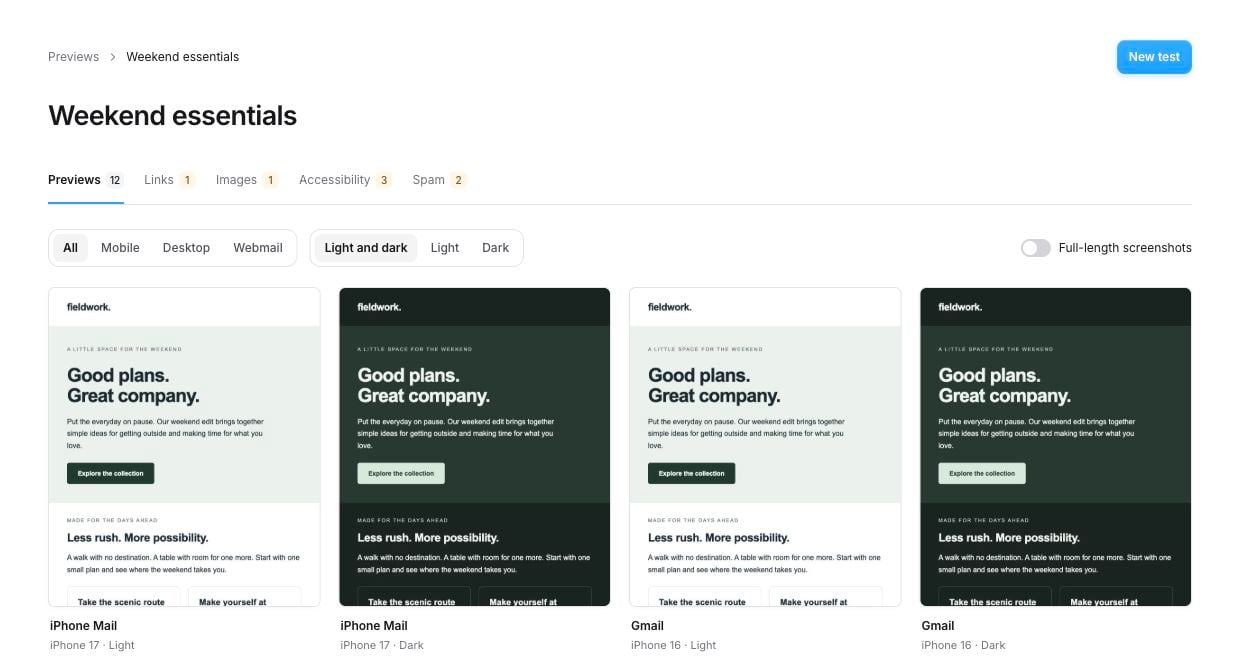
Filter the gallery by device type or appearance. Full-length screenshots lets you inspect the whole email without opening each card.
- Filter by Mobile, Desktop or Webmail, and by Light or Dark.
- Turn on Full-length screenshots to see the whole email in the gallery.
- Click a screenshot to open the larger viewer. Switch clients in the left list or with the arrow buttons.
- When you tested both appearances, light and dark appear together in the viewer.
- Click Download above an image to save that screenshot.
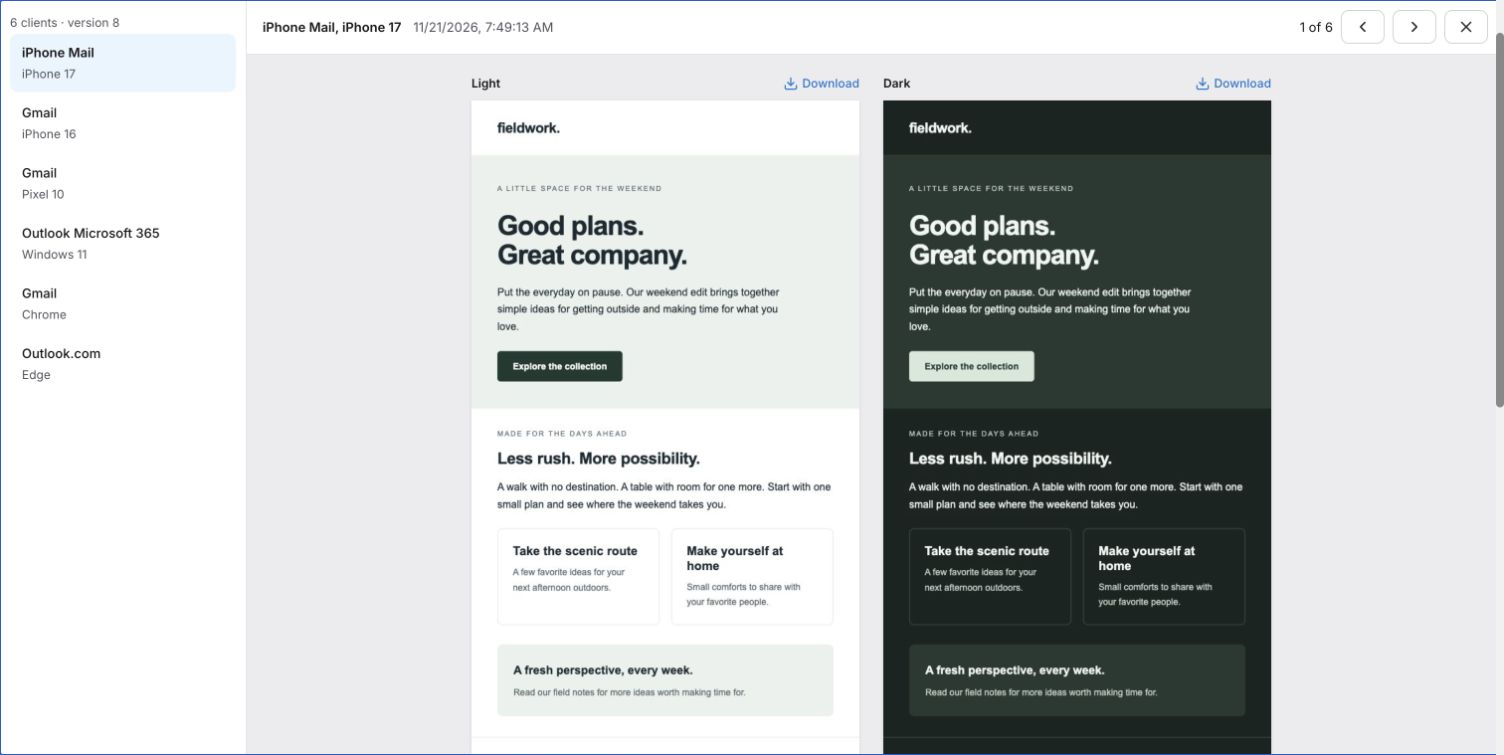
Open a card to compare light and dark together. Choose another client on the left, or download either screenshot.
Review the other checks
Only the checks you selected appear in the report.Links
The table shows each destination, its result and the response returned by the website. For a broken link, check the destination in the email’s link settings. Correct a typo or replace a page that no longer exists, then test again. Some websites block automated requests. Open a flagged destination yourself before replacing a link that looks correct. Personalized destinations and unsubscribe links need a separate check in your sending platform.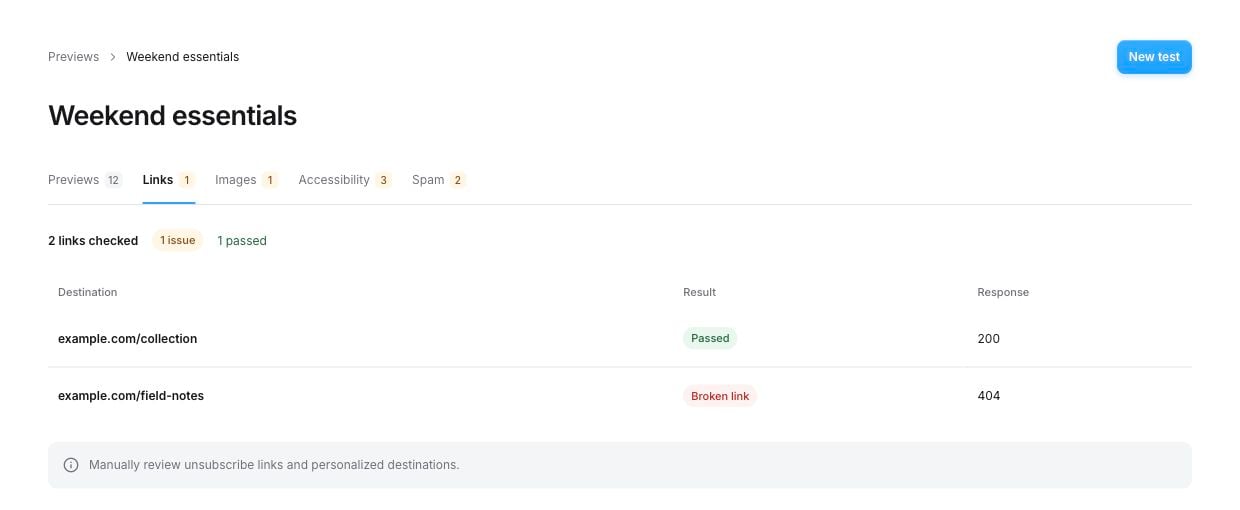
Example link results. A 404 means the destination could not be found. Correct the URL in the email or restore the page.
Images
Check for images that failed to load. The table also shows file size and dimensions when available. Replace broken image URLs or re-upload the image. If an image is much larger than it needs to be, resize or compress it before uploading it again.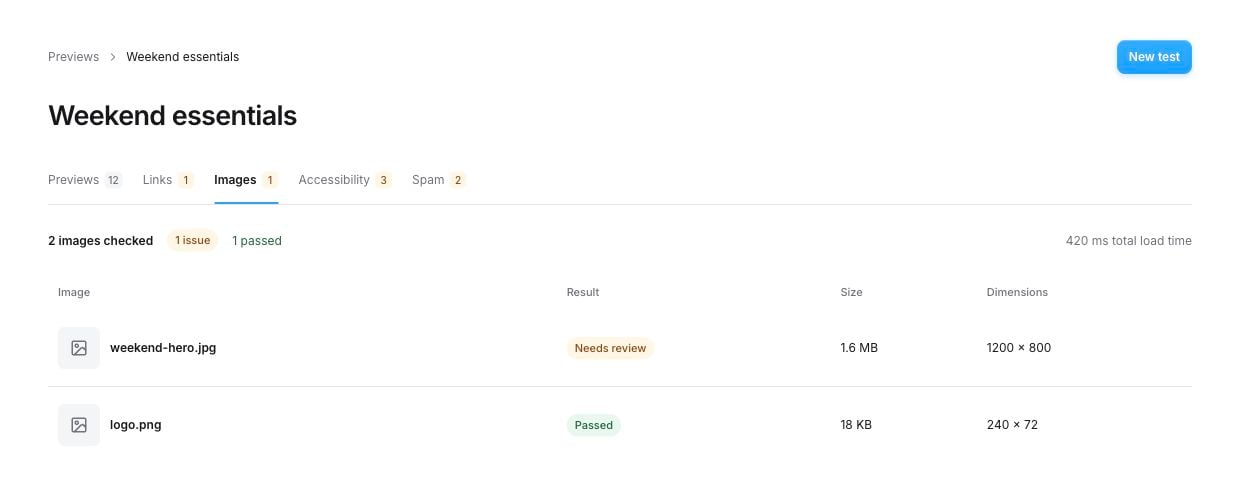
Example image results. File size and dimensions help you identify an image that needs resizing or compression.
Accessibility
Findings start collapsed. Open one to see How to fix or What to check, along with the affected content. Contrast findings can show the current colors, a target contrast ratio and a suggested color change. Update the text, image description or colors in the editor, then run the check again. Items marked for manual review need your judgment. Automated checks don’t replace a full accessibility review.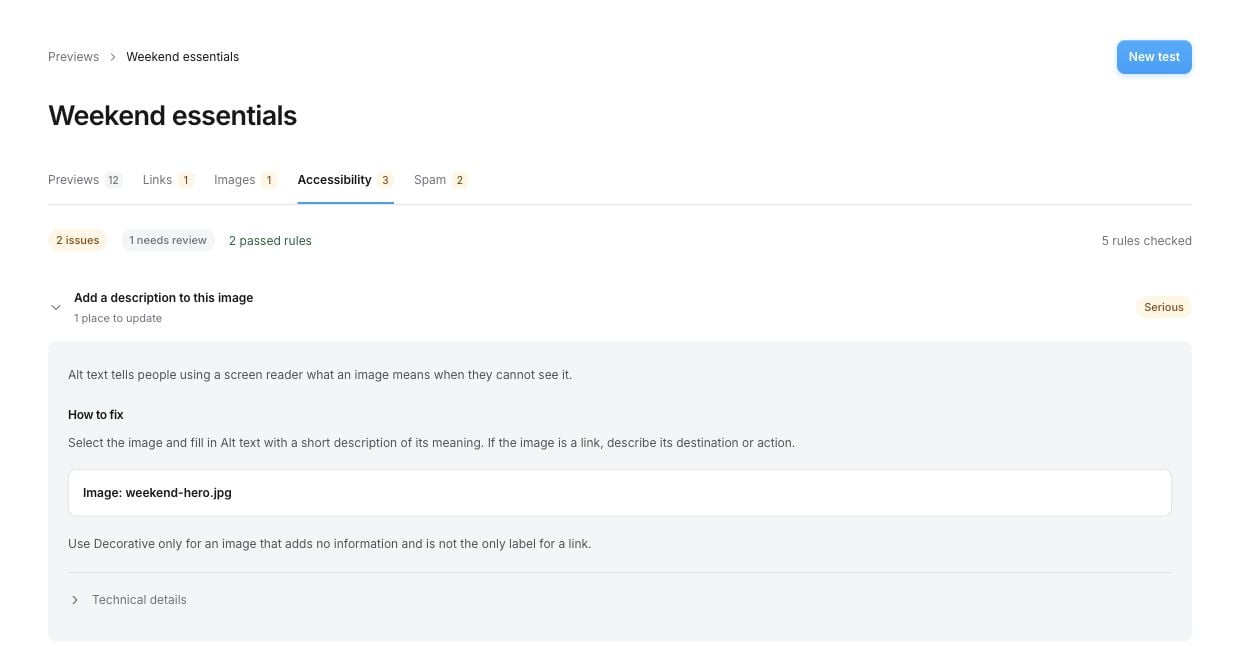
Findings start closed. Open one for a plain-language explanation and steps to fix the affected content.
Spam
The results show placement in consumer and business test inboxes.- Passed: the test passed for that inbox. Check Placement for the delivery result.
- Failed: review the placement. A Spam result means the test email reached that inbox’s spam folder. The check itself returned a result.
- Pending: that inbox has not returned a result yet. Other screenshots and checks can already be ready.
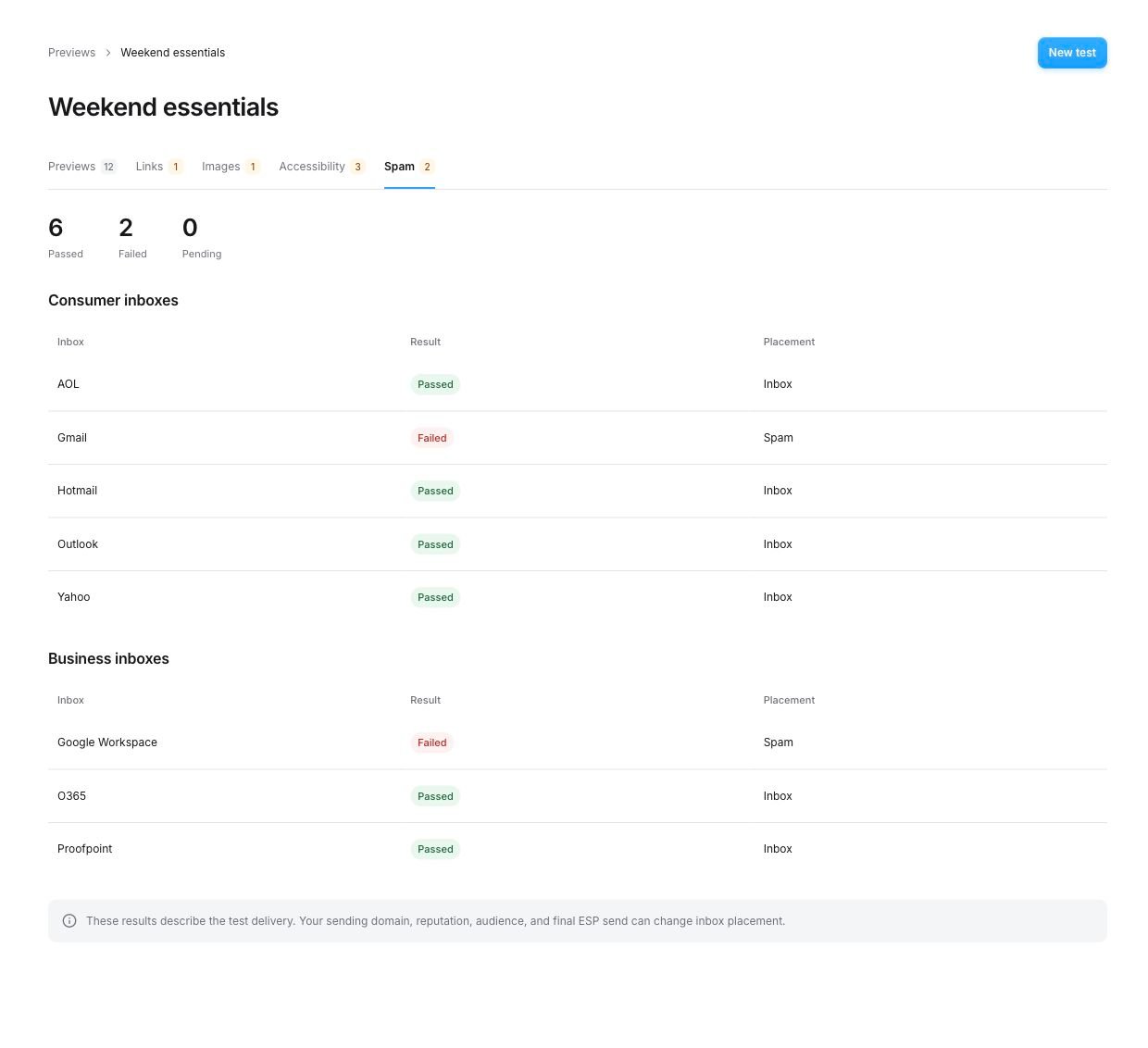
Example completed spam check: six passed, two failed and none pending. The failed rows identify the test inboxes where the email reached spam.
Sample and dynamic content
Tests use sample merge values. Klaviyo product-feed blocks use their sample products for screenshots; Klaviyo still chooses the live products at send time. A preview test doesn’t change your saved feed settings or replace the native Klaviyo export. Tracking pixels are removed and unsubscribe links are disabled in the tested copy. Link checks may therefore flag sample or disabled destinations. Review those separately in your sending platform. Use your sending platform’s own preview or test send to verify recipient-specific values, conditional content and the final products it will select.If a test doesn’t finish
- No screenshot returned or Partial results: review the screenshots that did finish. If you start another test for the missing variants, it uses previews again.
- Testing is temporarily at capacity: no new test was submitted. Try again later.
- Your remaining allowance is too small: deselect clients until the count fits, or run the other checks without screenshots.
- Previews is missing from the sidebar: refresh the Builder. If it still doesn’t appear, contact support with your workspace name.