

The products in Builder are catalog samples for designing. They are not the exact results of your feed rules or a recipient’s recommendations. Klaviyo chooses the final products when you send.
Before you start
- Connect Klaviyo to your Builder workspace.
- In Klaviyo, save a native drag-and-drop template with a dynamic product block using the feed you want. Builder finds feeds through those templates.
- To see real products in Builder, your connection needs Catalogs Read access and published products available through Klaviyo’s catalog API. If prompted, reconnect Klaviyo and approve catalog access.
1. Add a feed block
Open a campaign email or template. Add a row from Layouts, then drag Klaviyo Feed from Blocks into a column. If your email already has a feed, select it on the canvas or in Layers. The feed’s controls appear in Style on the right. Adding a block requires permission to change the layout. A fixed template or locked component may restrict which controls you can change.2. Choose your feed
- Click Choose a product feed. To replace an existing feed, click Change beside Product feed.
- If you have several connected accounts, choose the Klaviyo account.
- Find the feed by name and click it. Each result shows the Klaviyo template where Builder found it.
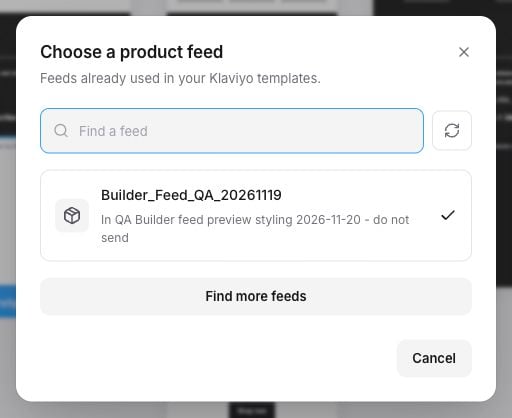
Choose a feed already used in a Klaviyo template. This example uses a test feed.
3. Choose products to design with
Builder loads sample products automatically after you choose a feed. To use different examples:- Under Preview, click Change products. If there are no samples yet, the button says Choose products.
- Search your catalog or browse the product cards.
- Select your examples, then click Use products.
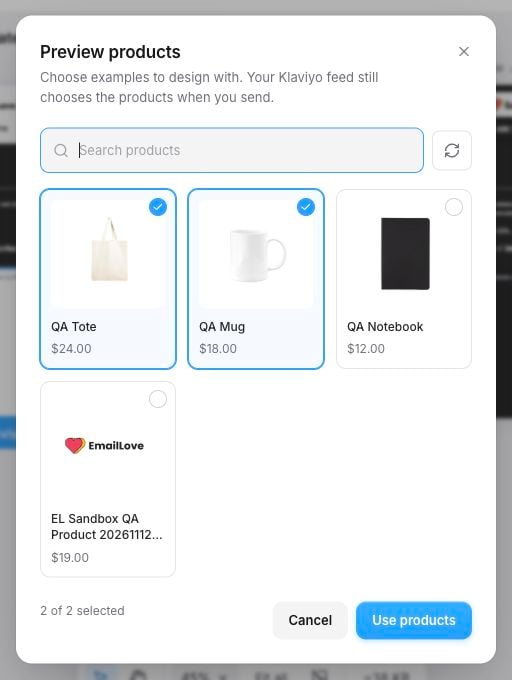
Choose real catalog products as design examples. This does not change the feed's rules or fix the products that recipients will receive.
4. Style the product cards
Select the feed and use these groups in Style. Check your changes on the desktop, mobile and dark previews.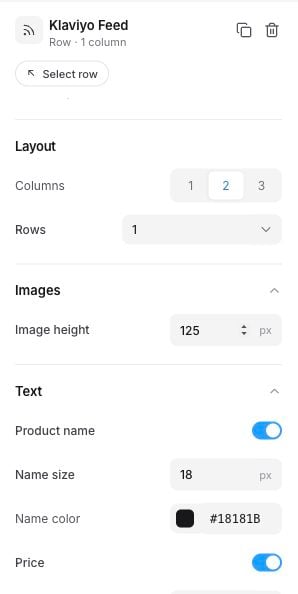
Layout, Images and Text keep the product card controls together. Scroll down for Button and Card.
Use feeds in templates and components
The same pickers work in campaign emails, templates and Component Studio. In Component Studio, add the feed to a standard layout row, set its starting content and publish when ready. Adding a structured feed to a custom MJML component is not supported.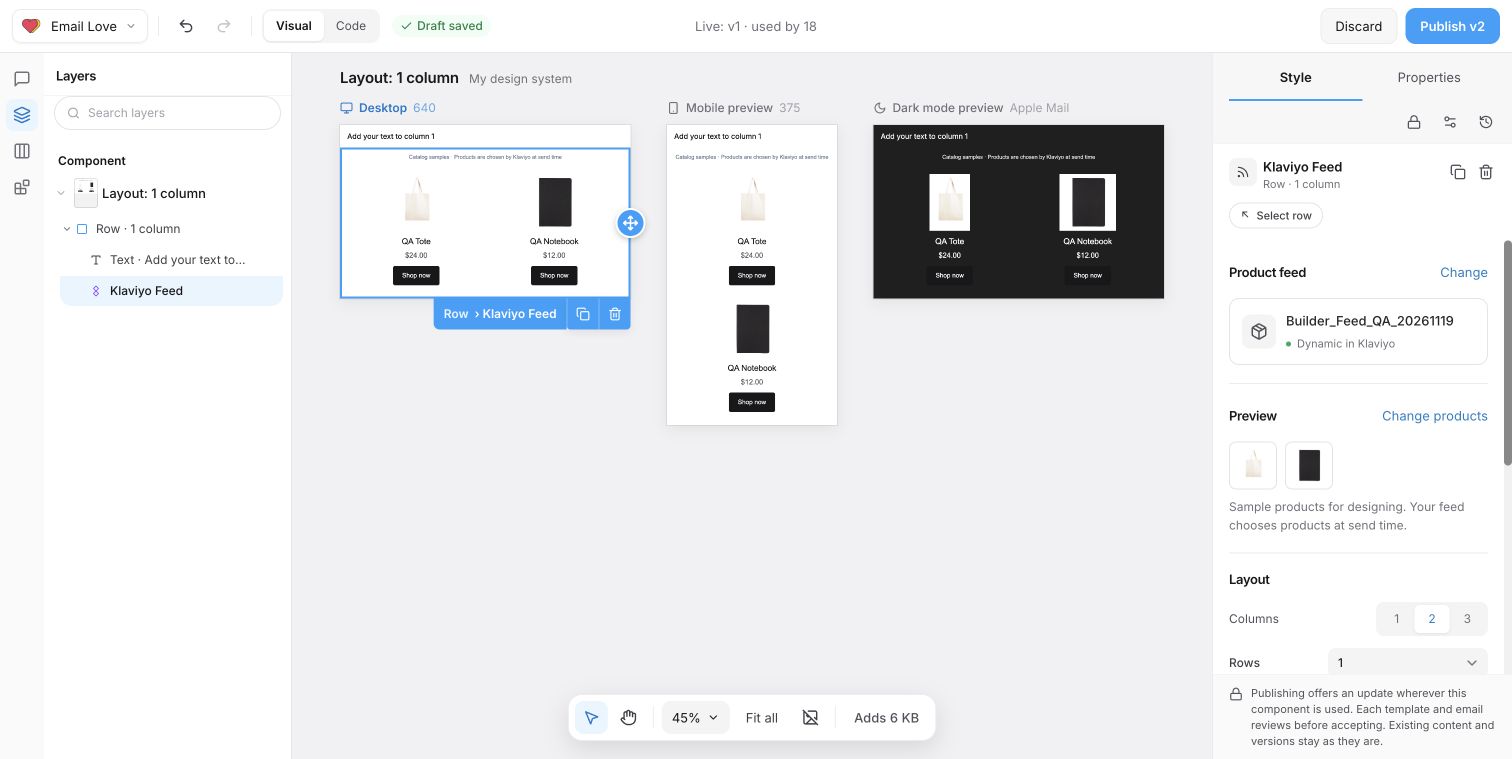
A standard layout component with catalog samples in desktop, mobile and dark previews. The feed and preview controls are the same as in templates and campaign emails.
5. Export and check in Klaviyo
- Open the campaign email you want to export. If you started with a template or component, use it in an email first.
- Click Export, choose Klaviyo and the same account as the feed.
- Under Editing in Klaviyo, choose Native drag-and-drop, then export.
- Open the exported template in Klaviyo. Preview its dynamic products and check the layout, links and mobile rendering before sending.