

Top bar
On the left:- The menu (top left). Back to campaigns or Back to campaign, Campaign canvas, Email settings, Version history, Create variant… and Check for updates.
- Undo and Redo.
- Visual and Code. Code shows the email’s HTML, read only.
- The language switcher, for example English. Switch language or add one. See Languages and translation.
- Saved, Saving… or Unsaved. The editor saves about two seconds after you stop typing.
- Preview as, when the email has merge tags or conditions. See Preview and test emails.
- Send test. See Preview and test emails.
- Invite, for people who can invite teammates.
- Share: export, download and push to your email platform. See Export and download.
- Avatars of anyone else in the email. See Live co-editing.
Left panel
The icon rail on the far left switches the panel:
In a template, the rail also has AI chat for design system managers. See AI chat.
Canvas
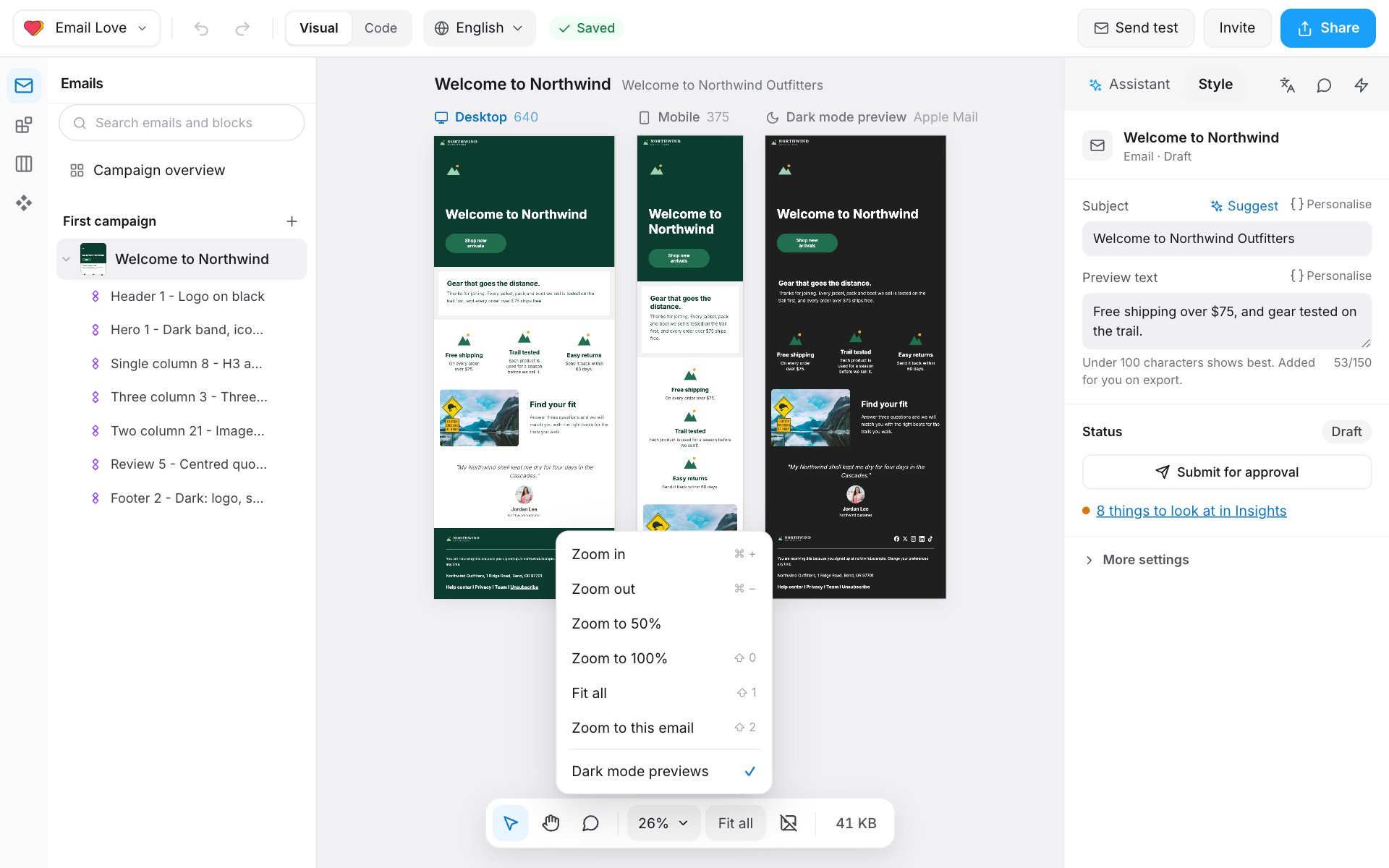
The canvas shows the email three times, side by side:- Desktop: where you click to edit.
- Mobile: the email at phone width. Click it to make phone-only changes.
- Dark mode preview: how the email looks in an inbox’s dark mode.
- Select (V), Hand tool (H, or hold Space) and Comment (C).
- The zoom menu: Zoom in, Zoom out, Zoom to 50%, Zoom to 100%, Fit all and Dark mode previews on or off.
- Show with images blocked: how the email looks before images load.
- The email’s size, so you can keep it under Gmail’s limit.
Right panel
Email settings
Click an empty part of the canvas, then More settings. Or open the menu at the top left and choose Email settings.- Sending: Where it’s going (your email platform, which sets the merge tag and condition syntax), Language and Text direction.
- Link tracking: UTM tags added to links.
- Brand styles: the brand styles this email uses.
Version history
Open the menu at the top left and choose Version history.- The Builder keeps a restore point about every five minutes while you edit.
- Click Name the current version to keep a version you want to find again. Filter by All versions or Named.
- Pick a version and click Restore this version. Restoring makes a new version and clears the email’s approval.