

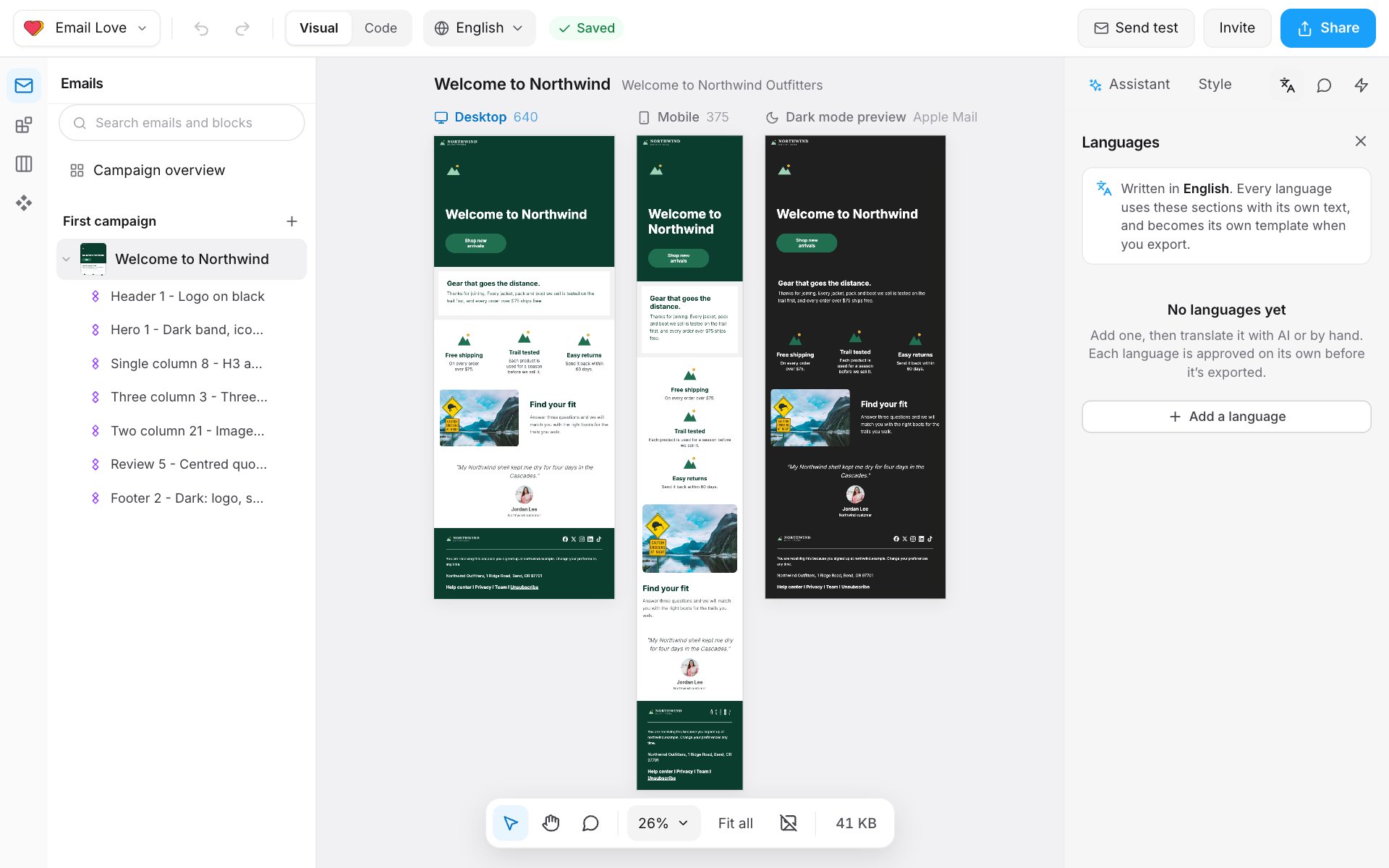
Add a language
- Open the Languages panel: the translate icon at the top of the right panel. Or open the language switcher at the top of the editor and choose Add a language.
- Pick a Language. For one that isn’t listed, choose Another language code….
- Under Start with, choose:
- Translate with AI: the Builder translates every piece of text. This uses AI credits.
- Copy from the original and translate by hand: the text starts in the original language for you to replace.
- Click Add and the language name.
Translate by hand
- Switch to the language with the language switcher. A bar shows Editing and the language name.
- Click any text in the email and type the translation.
- Click Back to the original language when you’re done.
Translate with AI
In the Languages panel, click Translate with the number of texts left. You can stop with Cancel translation. To leave some text in the original language, click Use the original text for the ones left. AI translation uses AI credits: 1 credit per language for each request. See AI credits.Translate with a spreadsheet
If a translator or agency works in spreadsheets:- In the Languages panel, click Download spreadsheet. You get a CSV file with every piece of text.
- Fill in the translations.
- Click Upload translations, check the preview, and click Save with the number of changes.
Leave out a section
To skip a section in one language, click Leave out on it in the Languages panel. Put back brings it back.Approve a language
Each language is approved on its own, before it can be exported.- When every piece of text is translated, click Approve and the language name.
- Until then, the button says Translate everything to approve the language.