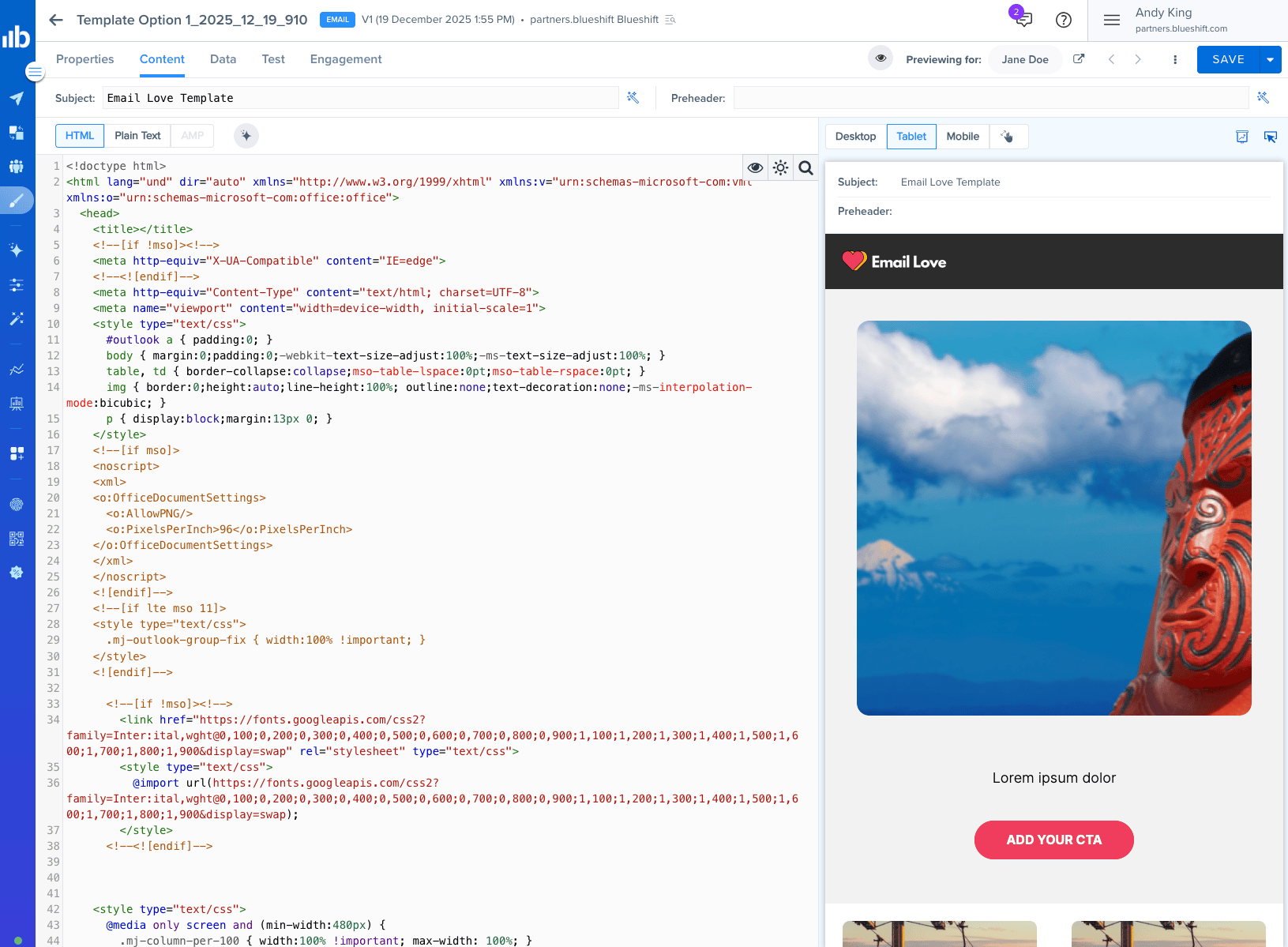
The Export feature in the Email Love Figma plugin allows you to easily convert your email design into email-friendly HTML or MJML, or directly export it to Blueshift.
Follow these steps to export your email design.
1
Select your frame
Ensure that your email design is finalized and ready for export, then click on the frame you want to export to ensure it is selected. Please note, you will need to use an Email Love Footer with an Unsubscribe link for the export to work. We will automatically merge in the Blueshift Unsubscribe token.
2
Click Export
Click the Export button located in the top right corner of the Plugin interface.
3
Pick Blueshift
On the Export page, select “Blueshift” from the dropdown menu.
4
Add your API key
If you have not added your Blueshift API key, click “Change API Key.”
5
Open Blueshift's API Keys page
Login to your Blueshift Account and navigate to Account Settings > API Keys.
6
Open the User API Key
Click on “User API Key.”
7
Copy the key
Copy the API key to your clipboard.
8
Paste the key into the plugin
Paste your API key into the “Blueshift API Key” box in the Email Love Figma Plugin.
9
Name the connection
Give your API key a name (useful if you have multiple Blueshift accounts or brands).
10
Pick your region
Select which region your API key uses (US or EU).
11
Save the key
Click the “Set API Key” button.
12
Export
Click the “Export to Blueshift” button at the top of the plugin.
13
Find your email in Blueshift
Navigate back to Templates > Email Templates in Blueshift to find your email.
Customizing your email before export
The Email Love Figma Plugin lets you configure all the details you’d normally set up in your ESP directly within Figma: Images: Select any image and use the Properties tab to add the image URL, alt text, or override the image source for dynamic content (Movable Ink, Nifty Images, countdown timers, etc.). Buttons: Select any button and add the destination URL in the Properties tab. Personalization: Add Blueshift merge tags like{{user.firstname}} directly in your text layers.
Mobile styles: Select any element and go to Mobile Styles to hide on mobile/desktop, adjust padding, or change font size, line height, and alignment.
Previewing your email
Before exporting, use the Preview tab to check your email on desktop, mobile, and dark mode. The Appearance tab lets you customize light and dark mode rendering settings, including iOS-specific dark mode behavior and Google font fallbacks.Edit your email inside of Blueshift
Once you have exported your email, you can navigate to Templates > Email Templates inside of Blueshift where you can then send it to your recipients or edit the content directly in the HTML.Related Articles
- Export Overview: Understand all export options and how the plugin converts your Figma design to HTML
- Image Hosting: How the plugin handles image hosting during export