Exporting your email to Iterable
The Export feature in the Email Love Figma plugin allows you to easily convert your email design into email-friendly HTML or MJML, or directly export it to Iterable.
Follow these steps to export your email design.
1
Select your frame
Ensure that your email design is finalized and ready for export, then click on the frame you want to export to ensure it is selected. Please note, you will need to use an Email Love Footer with an Unsubscribe link for the export to work. We will automatically merge in the Iterable Unsubscribe token.
2
Click Export
Click the Export button located in the top right corner of the Plugin interface.
3
Pick Iterable
On the Export page, select “Iterable” from the dropdown menu.
4
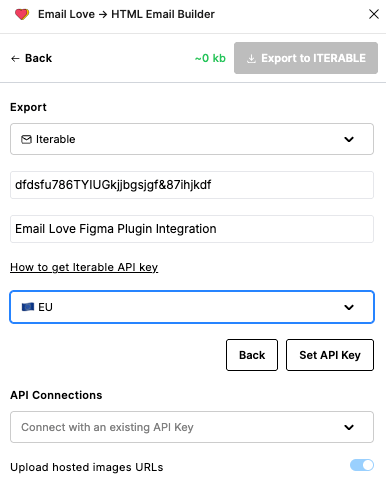
Add your API key
If you have not added your Iterable API key, click “Change API Key.”
5
Open Iterable's API Keys page
Login to your Iterable Account and navigate to Integrations > API Keys.
6
Create a new key
Click the “New API Key” button.
7
Name the key and pick Server Side
Give your API key a name and select “Server Side.” Click “Create API Key.”
8
Paste the key into the plugin
Copy and paste your API key into the “Iterable API Key” box in the Email Love Figma Plugin.
9
Name the connection
Give your API key a name.
10
Add a Template Attribution email (optional)
In the email field below the key name, enter the Iterable login email of the person new templates should be credited to. Leave it blank to keep Iterable’s default. See Attributing templates to a team member.
11
Pick your region
Select which region your API key uses (US or EU).
12
Save the key
Click the “Set API Key” button.
13
Export
Click the “Export to Iterable” button at the top of the plugin.
14
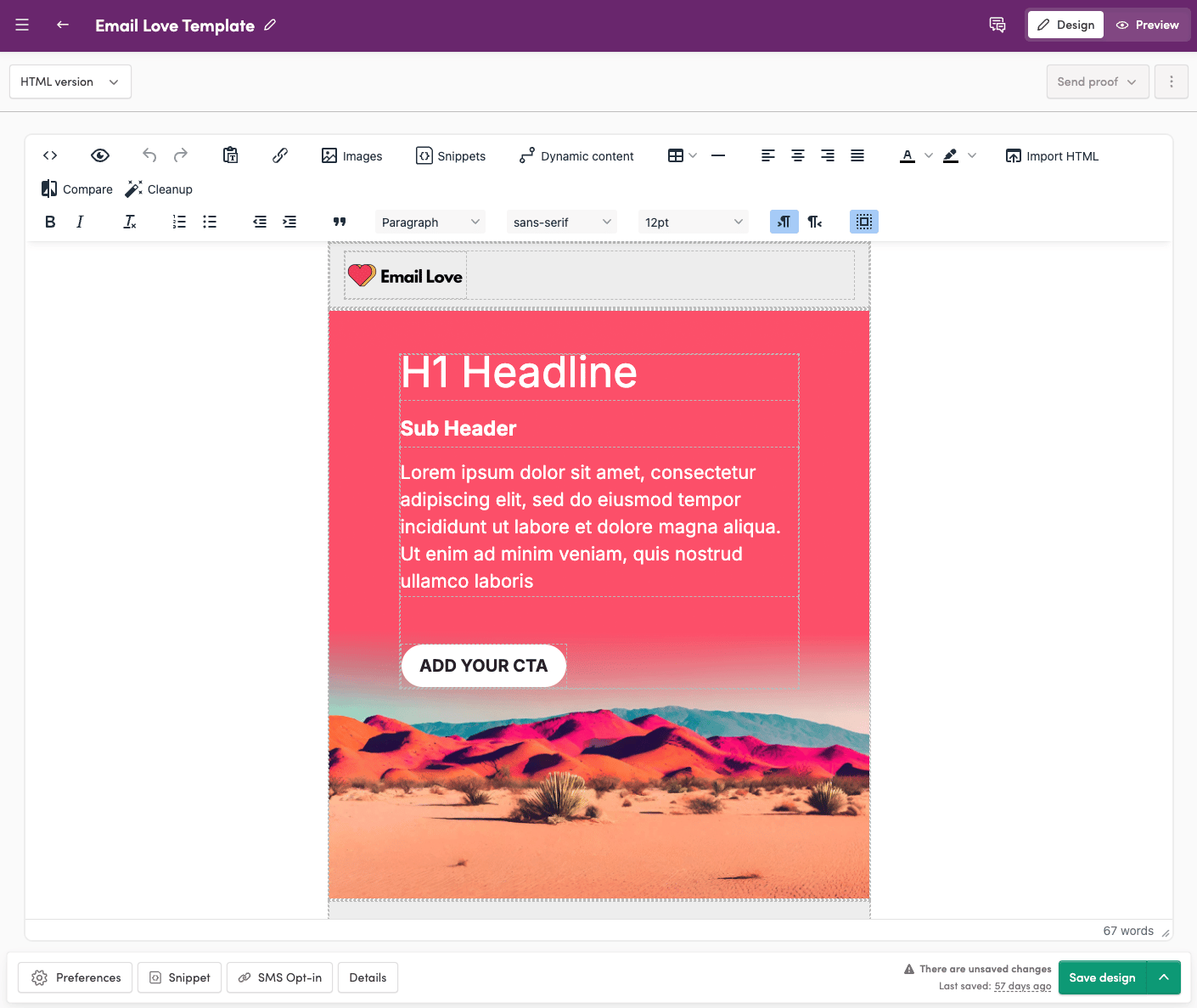
Find your email in Iterable
Navigate back to Content > Templates in Iterable to find your email.
Attributing Templates to a Team Member
By default, Iterable lists the person who created your Iterable organization as the creator of every template the plugin exports. To credit someone else, like the designer who built the email, save their email with your API key:- On the Export page, pick Iterable and click Change API Key.
- Fill in the key, the key name, and the email field below the key name (it shows
name@company.comuntil you type). - Pick your region and click Set API Key.
- Use an existing member of your Iterable project. Iterable only accepts a creator who belongs to the project. With any other email, exports that create new templates fail until you fix the email under Change API Key.
- It only affects new templates. Iterable sets a template’s creator when the template is first created. Re-exporting a template that already exists doesn’t change its creator. To change the creator on an older template, make a copy of it inside Iterable.
- Each saved key has its own email. Iterable Snippet uses a separate API key, so set the email on that key too. Snippets are credited right away, because every snippet export creates a new snippet.
- Blank means Iterable’s default. Clear the field and save to go back to crediting the organization’s creator.
- Changing the key keeps the email. Change API Key fills in the saved email, so editing your key doesn’t drop it. An address that isn’t a valid email shows “Enter a valid email address” and isn’t saved.
Exporting a Multi-Locale Template to Iterable
Designing the same email in multiple languages? The Email Love Figma Plugin can bundle all your language variants into a single Iterable template with locale variants, so you maintain one template in Iterable, and Iterable serves the right language at send time based on each recipient’slocale profile field, with a designer-chosen default as fallback.
When to use multi-locale export:
- Same campaign going to audiences in different regions (e.g. en-US, fr-FR, de-DE, ja-JP)
- You want one template in Iterable to manage all language variants instead of a separate template per language
- You want Iterable to automatically serve the right language based on each recipient’s
localeprofile field
- Your Iterable API key already saved in the plugin (see steps 4 to 12 above)
- An Email Love Footer with an Unsubscribe link in every language frame
- All locale codes you plan to use must already be configured in Iterable under Project Settings > Locales. The export will fail for any locale that isn’t configured.
- One Email Love frame per language, named using the convention below
{Base Name} - {locale}:
The plugin detects multi-locale templates from frame names. Use space-dash-space between the base name and the locale code:
- Delimiter: space-dash-space (
-).Welcome_Email-en-USwon’t be parsed as multi-locale. - Locale token: ISO-style code, 2 to 3 lowercase letters with an optional region suffix. e.g.
en,en-US,pt-BR,zh-Hans. - No suffix: Frames without a locale suffix still export normally as single-language templates. Fully backward compatible.
- Mixed selection: You can export some grouped (multi-locale) frames and some single-language frames in the same batch. Each group resolves independently.
- Merge tags are preserved per variant: unsubscribe and personalization tokens you set on each frame (such as Iterable’s
{{hostedUnsubscribeUrl}}) are kept for that locale, so localized links and tokens are respected.
- In Figma, prepare one Email Love frame per language, named using the convention above.
- Multi-select all the language variants you want included in the template.
- Open the Email Love Plugin and click the Export button in the top right.
- Select Iterable from the dropdown, the same option as a normal export. The plugin auto-detects multi-locale templates from the frame names.
- Click Export to Iterable. The plugin groups your frames by base name (
Welcome Email) and sends each one to Iterable’stemplates/email/upsertendpoint with its locale code. - You’ll see a separate success toast per locale:
Template Welcome Email [en-US] is exported. - Navigate to Content > Templates in Iterable. You’ll find one template named after your base name, with each language version available under the Locales dropdown at the top.
clientTemplateId, so each variant overwrites in place instead of creating duplicates. To add a new language, design a new frame with a new locale suffix, multi-select it along with the rest of the group, and re-export. The plugin appends the new locale to the existing template.
Scope:
- Email templates only (SMS / push variants are not supported yet).
- Side-by-Side HTML templates only. Iterable’s API-driven localization does not support Drag-and-Drop editor templates.
- Locale not configured. You’ll see a per-locale toast like
Locale 'pt-BR' is not configured in your Iterable project. Add it under Project Settings → Locales.Add the locale in Iterable, then re-export. Other locales in the same batch are unaffected and still succeed. - Frames didn’t group together. Check the delimiter. It has to be space-dash-space (
-). Underscores or dashes without spaces won’t be parsed as multi-locale. - Variants split into separate templates. Base names must match exactly, including capitalization and spacing.
Welcome - en-USandWelcome Email - fr-FRare treated as two different templates. - Locale token rejected. Use 2 to 3 lowercase letters with an optional region suffix (e.g.
en,en-US,pt-BR).EN-usorenglishwon’t parse. - Wrong frame is the default. The plugin picks the first frame in your selection by Figma layer order. Reorder your frames in the layers panel and re-export.
- Unsubscribe link missing in one language. Every frame needs its own Email Love Footer with an Unsubscribe link. The plugin doesn’t carry it over from the default locale.
- Wrong language is going to recipients. Check that your Iterable profiles have a
localefield populated with the matching code. If it’s missing or formatted differently, Iterable falls back to the default locale variant.
- Iterable: Creating Content in Multiple Languages
- Iterable: Setting Up Locales
- Iterable: User Profile Fields
Exporting Snippets to Iterable
The Email Love Figma Plugin also supports Iterable’s Snippet API. Snippets are reusable content blocks (headers, footers, CTAs, legal disclaimers) that update everywhere at once: change a snippet in Iterable, and every template that references it gets the update automatically.
Without snippets, updating a shared element like a footer means editing every single template that uses it. Snippets turn repeated content into a single source of truth. Common use cases:
- Headers and navigation bars: keep branding consistent across all campaigns
- Footers: update legal text, social links, or unsubscribe language in one place
- Promotional banners: swap seasonal offers across your entire template library with one edit
- Legal disclaimers: ensure compliance language is always current
1
Design your snippet in Figma
Build your reusable section inside an Email Love frame. Name the frame carefully: the frame name becomes the start of your snippet name in Iterable. Keep snippets self-contained (a header snippet should include everything from the top logo through the navigation links) and design them to work across different templates.
2
Export it as an Iterable Snippet
Select the frame, click Export, and choose Iterable Snippet from the dropdown. If you haven’t connected your API key for snippets yet, follow steps 4 to 12 from the export section above. The Snippet API connection is separate from the Template API connection, so you have to connect it even if template exports already work.
Click Upload to send it to Iterable.
3
Find it in Iterable and copy the reference
Navigate to Content > Snippets in Iterable. Your snippet is named after your Figma frame, with an underscore and a short number added to the end (for example
footer-legal_482). Click it and copy the reference code, which looks like {{snippet "footer-legal_482"}}.4
Reference it in your templates
In the Figma template where you want the snippet, scroll to the bottom of the plugin’s component list and click Code (the last option) to add a Raw Code Component. Paste the snippet reference into the code field, then export the template to Iterable normally. Iterable replaces the reference with the snippet content at preview and send time. For more on the component, see Raw Code Component.
<head>, not inside the snippet. Export the snippet section as a full email first, copy the CSS from the <head> of the exported HTML, then paste it into the Properties section of each template that uses the snippet. Standard text, images, buttons, and layout components don’t need this.
Updating a snippet: every export from Figma creates a new snippet with a new number on the end. It doesn’t overwrite the one you exported before. To change a snippet your templates already reference, either edit it directly under Content > Snippets in Iterable, and every referencing template picks up the change, or re-export from Figma and point your templates’ references at the new snippet name. If you edit directly in Iterable, update your Figma design to match so the two don’t drift apart.
Managing multiple snippets: as your library grows, prefix snippet names with their type (header-primary, footer-legal, banner-promo-q1), keep a dedicated Figma page for snippet designs, and document which templates use which snippets.
Snippets vs. full template exports: use snippets for content that appears in multiple templates and needs central updates; use full template exports for one-off campaigns where every section is unique. Most teams combine both: full exports for the email body, snippet references for shared headers and footers.
Edit your email inside of Iterable
Once you have exported your email, you can navigate to Content > Templates inside of Iterable where you can then send it to your recipients or edit the content with Iterable’s built in editor or directly in the HTML.