

Connect MoEngage
Workspace owners and admins connect this integration.- Open Integrations in Builder and choose MoEngage under Email service providers.
- Give the connection an Account name your team will recognize, then enter the details below.
- Save the connection. For another account on the same platform, choose Connect another account and give it a recognizable name.
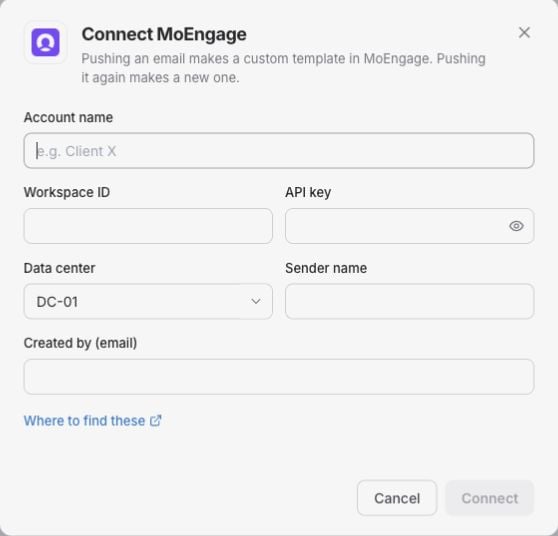
The MoEngage connection form in Builder. Enter your own account details; no credentials are shown in this example.
Saved secrets are not shown again. Leave a saved secret blank to keep it, or enter a new value to replace it. Credentials saved only in the Figma plugin do not connect the Builder account.
Use Where to find these in the connection panel for the provider’s setup guidance.
Export from Builder
Open an email, click Export, choose MoEngage and the account, then review the dialog and confirm. The export creates a custom template. Each push makes a new copy in this platform. Choose Export as an email template or a content block. Check the destination after export and finish your sending setup in the platform. An export does not send a campaign. If Builder says Check your ESP before retrying, inspect the destination before exporting again. See Exporting and plans.Email reporting in Builder
Reporting is not currently available for this integration. Campaign reporting exists, but its email-only metric mapping still needs verification. This does not change the export options above. See reporting coverage and limits.Troubleshooting
- Connection rejected: check the credentials and any region or endpoint against the account you want to use. Update saved secrets in Integrations if they have changed.
- Wrong destination: check the selected account before exporting or choosing a report source.