

Preview on the canvas
The editor always shows three previews side by side: Desktop, Mobile and Dark mode preview. You don’t need a separate preview mode.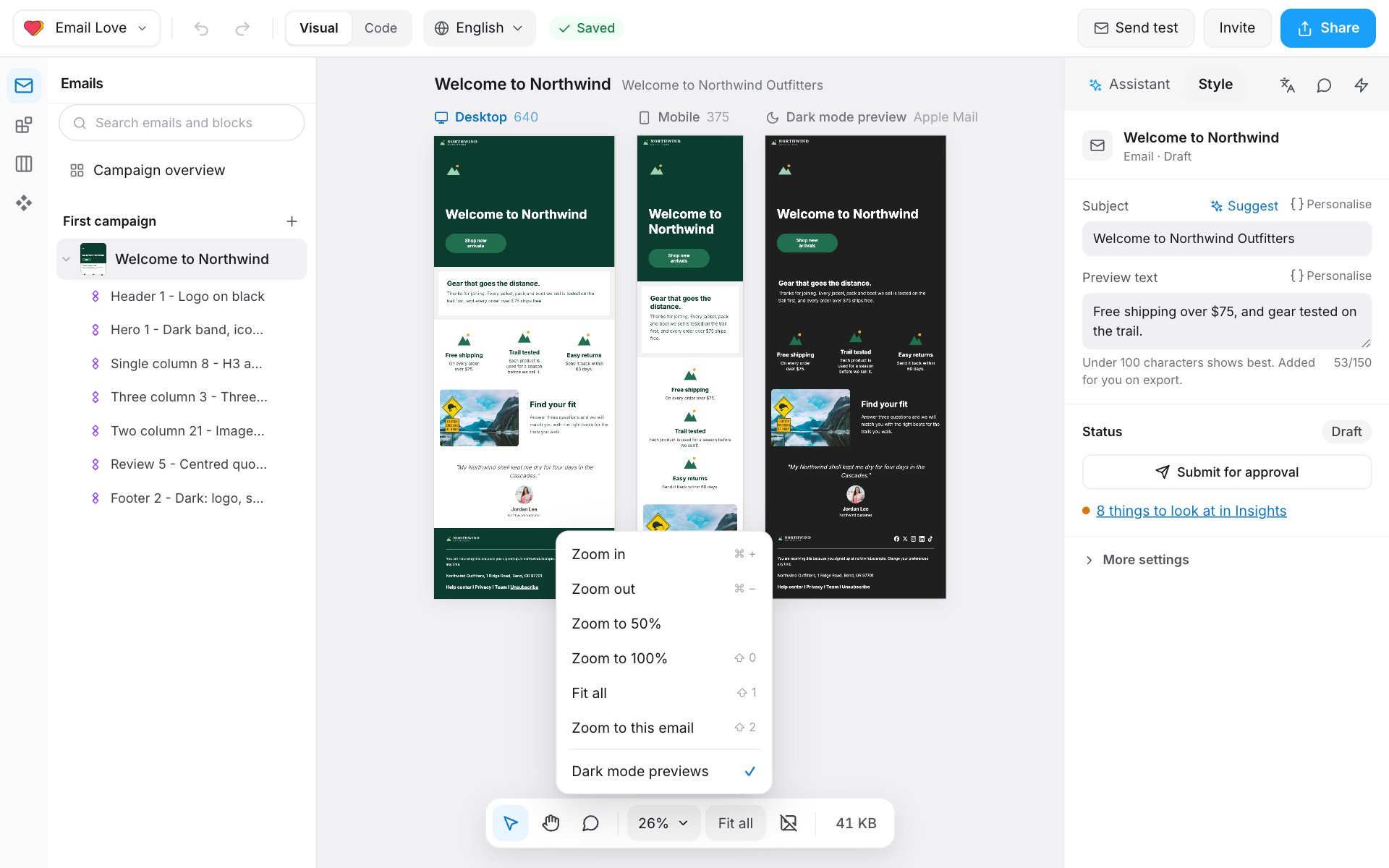
Compare the same email across the three previews. Use Fit all in the zoom menu to bring them into view. Edit on Desktop; the other previews update from it.
- Dark mode previews in the zoom menu turns the dark mode preview on or off.
- Show with images blocked shows the email as it looks before an inbox loads images. Check that your alt text makes sense.
- The size at the bottom of the canvas shows how heavy the email is. Gmail clips emails over 102 KB.
A quick visual review
- Check the Desktop version for missing content and broken links.
- Read Mobile from top to bottom. Look for awkward line breaks, crowded buttons and columns that stack in the wrong order.
- Check Dark mode for disappearing logos, low-contrast text and images with unexpected backgrounds.
- Turn on Show with images blocked. Make sure the message and image descriptions still make sense.
- Run Inbox previews and checks for real email-client screenshots. You can also send a test to your own inbox.
Test in real email clients
Open Previews in the left sidebar and click New test. Choose a saved email, select the clients and checks, and click Run selected tests. The report brings together screenshots, links, images, accessibility and spam results.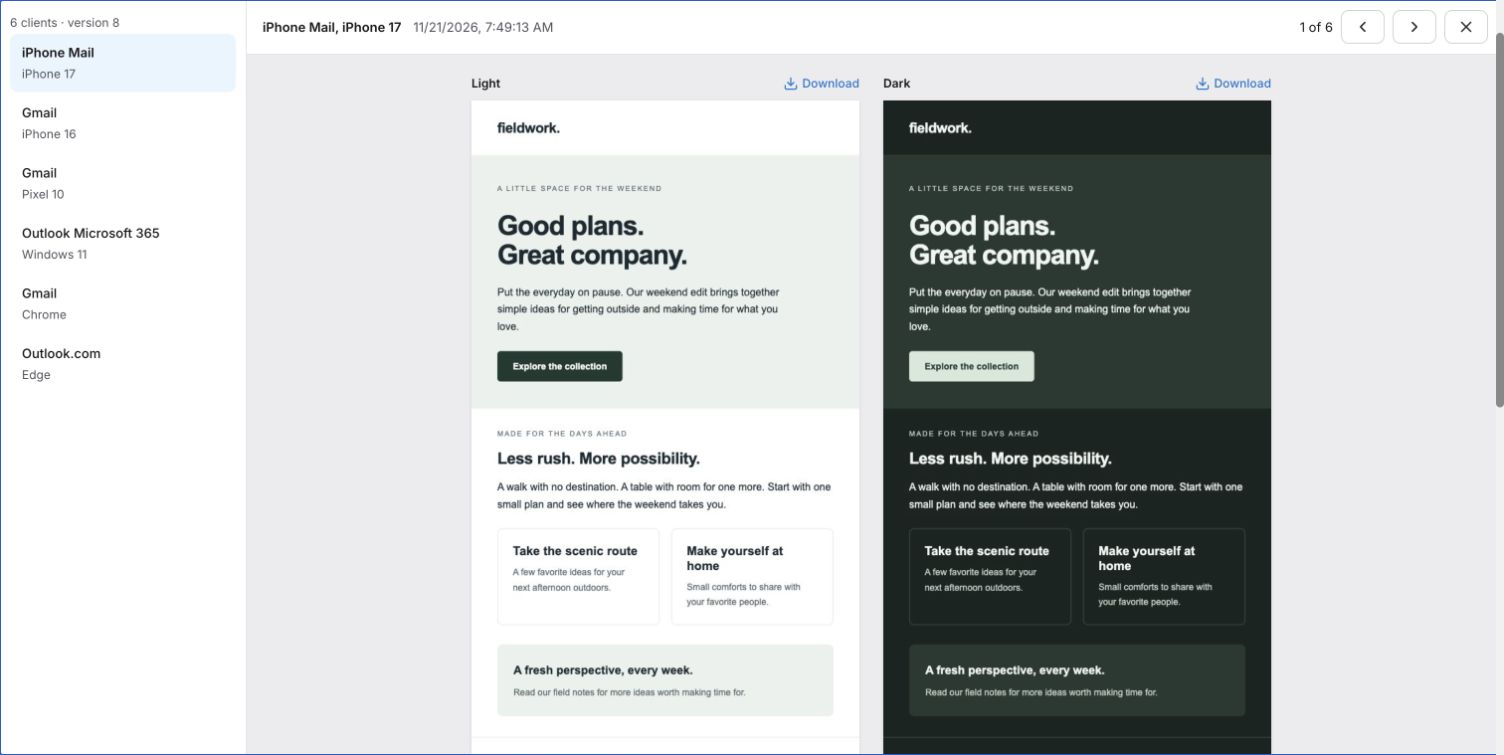
Example report with fictional content. Open a screenshot to compare light and dark, switch clients and download the result.
Preview as
Preview as appears at the top when the email has merge tags or conditions. It shows the email with example values, a saved profile, or one version of each condition. Use it to check that merge tags have sensible fallbacks.See the code
Click Code at the top of the editor to see the email’s HTML. It’s read only.Preview saved Customer.io content
After a verified Customer.io export, reopen its export dialog and click Preview saved content. Enter fictional sample data and click Render sample data to ask Customer.io to render the saved email or reusable template. This previews the last verified export for the selected account and language. It does not include later Builder edits, look up a real customer or send an email. See Customer.io for the sample-data format and limitations.Send a test email
- Click Send test at the top right, or Send test email in the Export menu.
- Under Send to, enter up to 10 addresses, separated by commas. Each person gets their own copy.
- Check the Subject line.
- Click Send test.
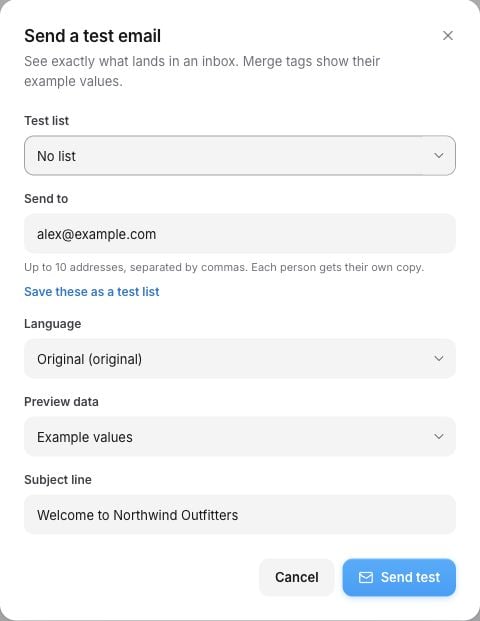
Example with fictional recipient details. A saved test list is optional; each address receives its own copy.
- Test list: pick a saved list of addresses. Select Save these as a test list to save the ones you typed.
- Language: which language to send.
- Preview data: which example values fill the merge tags.
- Send as: which version of each condition to send, or Every version.
- have “[Test]” at the start of the subject line.
- fill merge tags with their example values.
- are free on every plan, including Free. They don’t count as exports.
- go out even when a check would block export.
Publish to web
Export › Publish to web puts a copy of the email on a public web page.- Click Publish email.
- Copy the Public link with Copy link, or click Open published email.